> For the complete documentation index, see [llms.txt](https://docs.portainer.io/llms.txt). Markdown versions of documentation pages are available by appending `.md` to page URLs; this page is available as [Markdown](https://docs.portainer.io/admin/licenses.md).
# Licenses
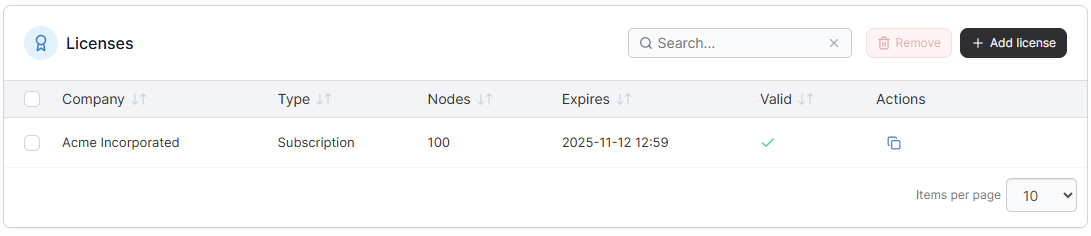
Licensing in Portainer Business Edition is based on the [number of nodes](/faqs/licensing/what-is-a-node-for-licensing-purposes.md) you are managing.
If you wish to renew your existing license you can do so by clicking the **Renew license** button.
You can also view a list of each license applied to your Portainer installation.
If you want to add more nodes to your environment than your license allows, you can [buy more nodes](/faqs/licensing/how-do-i-add-more-nodes-to-my-license.md).
## Add a new license
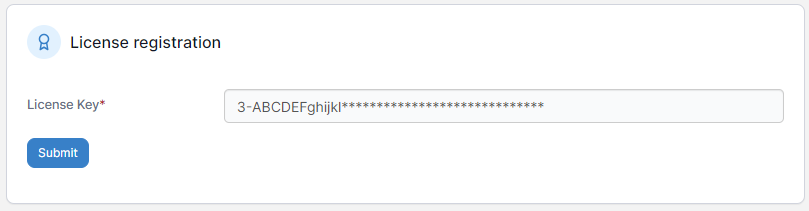
Once you have obtained your new license key, to add it to Portainer click **Add license**, enter your license key then click **Submit**.
## Remove a license
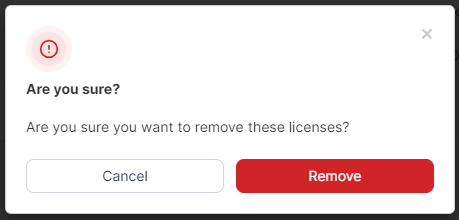
To remove a license (for example when you want to remove an expired license), tick the box next to the license and click **Remove**. You will be asked to confirm the removal.
{% hint style="warning" %}
Ensure you have enough licenses to cover the number of nodes you are using before committing to the removal. For more on how nodes are calculated, refer to [this article](/faqs/licensing/what-is-a-node-for-licensing-purposes.md).
{% endhint %}
To confirm, click **Remove**.