> For the complete documentation index, see [llms.txt](https://docs.portainer.io/llms.txt). Markdown versions of documentation pages are available by appending `.md` to page URLs; this page is available as [Markdown](https://docs.portainer.io/user/docker/containers/add.md).
# Add a new container
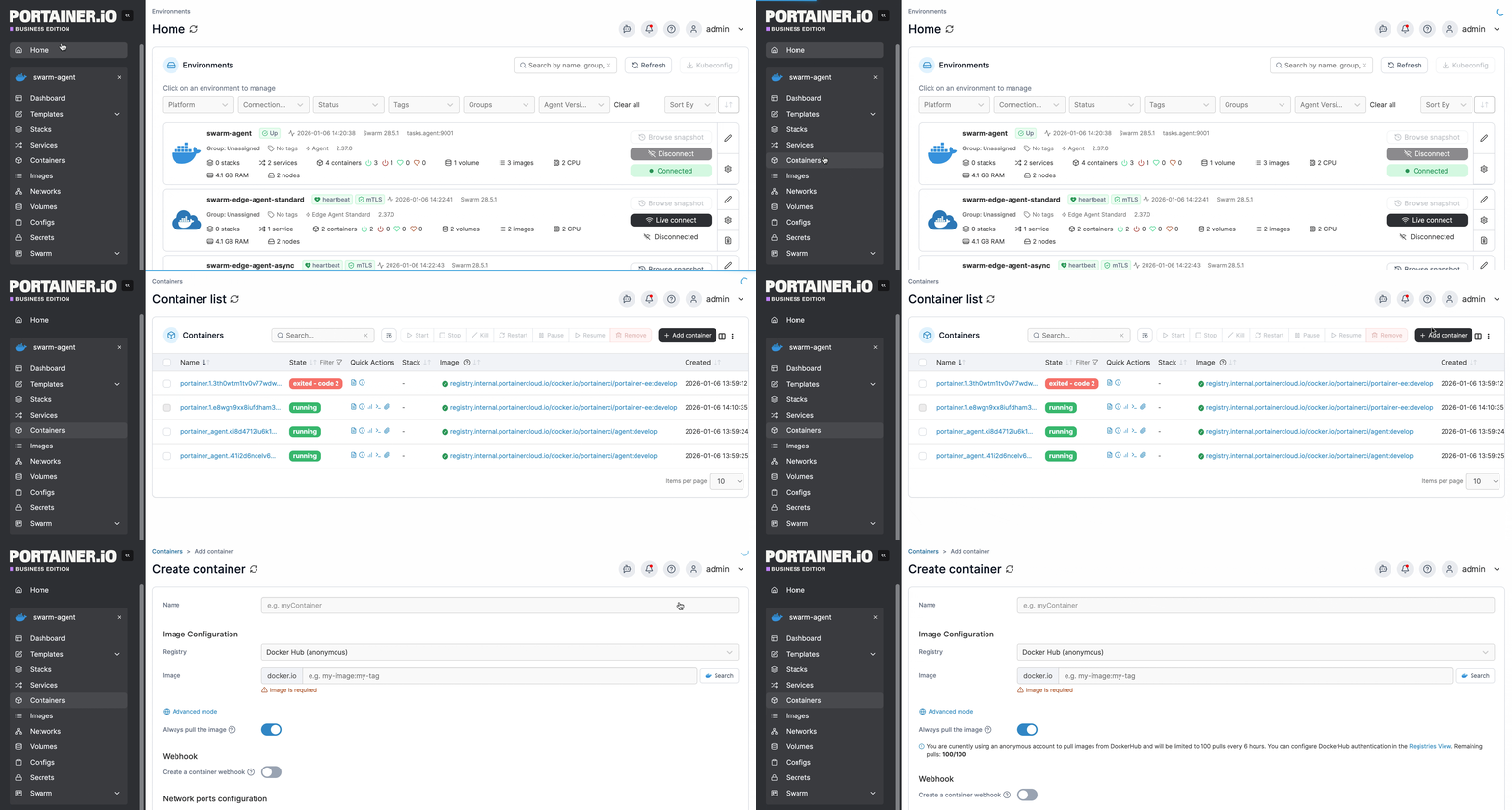
Select **Containers** from the menu then click **Add container**.
Configure the container settings as required.
## Image configuration section
| Field/Option | Overview |
| --------------------- | ------------------------------------------------------------------------------------------------------------------------------------------ |
| Name | Give the container a descriptive name. |
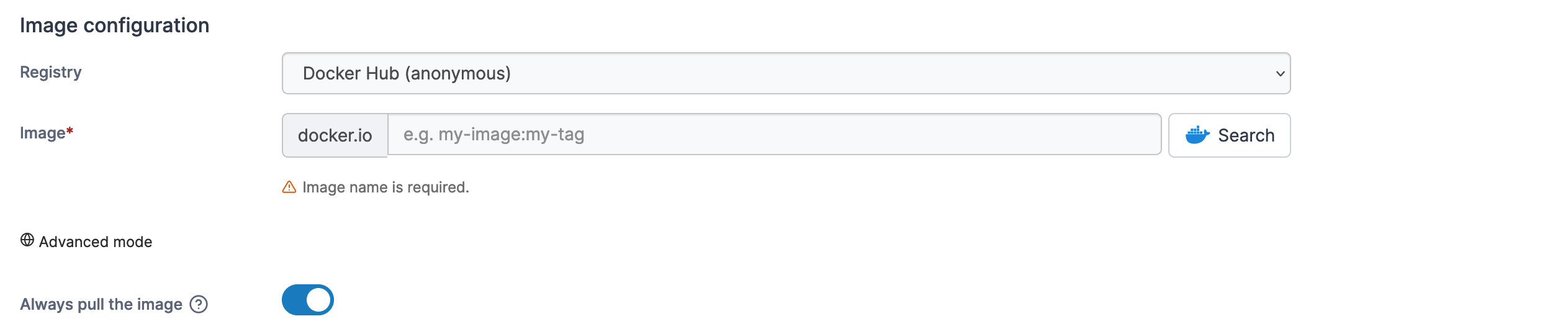
| Registry | Select the registry that contains the image that you want to use for your container. |
| Image | Enter the name of the image you want to use. |
| Always pull the image | Toggle on to enforce pulling the image from the registry instead of using the locally cached copy (if you have used the image previously). |
{% hint style="info" %}
When using Docker Hub you can use the **Search** button to search for the image you have entered, and ensure that you have the correct name and tag. Portainer also displays the number of pulls remaining for your Docker Hub account when using an anonymous account.
{% endhint %}
Alternatively you can switch to advanced mode to manually enter registry and image details. This is useful if you want to do a one-off container deployment from a registry that isn't configured within Portainer.
## Webhooks
Toggle **Create a container webhook** on to create a [webhook](/user/docker/containers/webhooks.md) for the container. You can send a POST request to this endpoint to automate pulling the most up-to-date image and re-deploy your container.
## Network ports configuration section
| Field/Option | Overview |
| ------------------------------------------------------ | -------------------------------------------------------------------------------------------------------- |
| Publish all exposed network ports to random host ports | Toggle on to allow Portainer to randomly assign ports on the host to the exposed ports in the container. |
| Manual network port publishing | Click **publish a new network port** to create manual port mappings for the container. |
## Actions section
| Field/Option | Overview |
| ------------ | ----------------------------------------------------------------------------------------------------------------------------------- |
| Auto remove | Toggle this option on to automatically remove the container once it exits. This is useful if you want to run a container only once. |
Once complete, set any advanced options (see below) then click **Deploy the container.** If successful your container will be shown in the container list.
## Advanced container settings
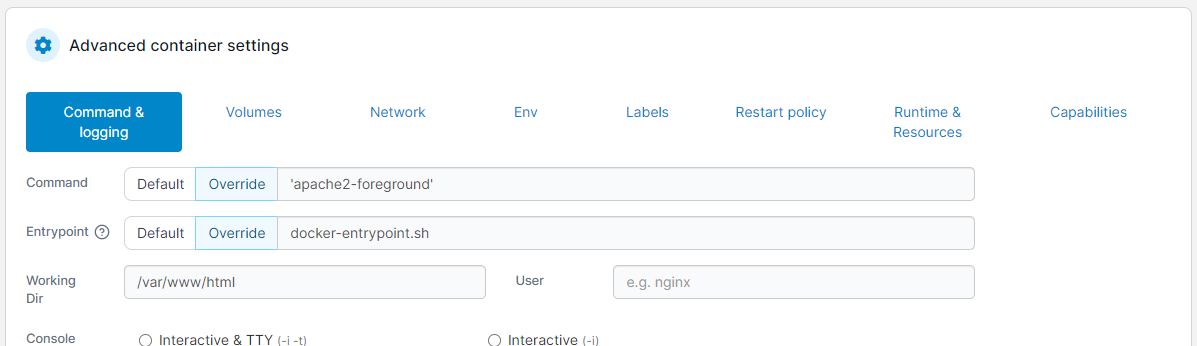
Choose from a [range of options](/user/docker/containers/advanced.md) to customize the deployment.