> For the complete documentation index, see [llms.txt](https://docs.portainer.io/llms.txt). Markdown versions of documentation pages are available by appending `.md` to page URLs; this page is available as [Markdown](https://docs.portainer.io/user/edge/stacks/add/kubernetes-deployment.md).
# Kubernetes deployment
Define how to deploy your app from one of the **Build Method** options.
| Option | Overview |
| ------------------------- | ------------------------------------------------------------------ |
| [Web editor](#web-editor) | Use the Portainer web editor to write or paste in your build file. |
| [Upload](#upload) | Upload a build file from your computer. |
| [Repository](#repository) | Use a GitHub repo where the build file is stored. |
### Web editor
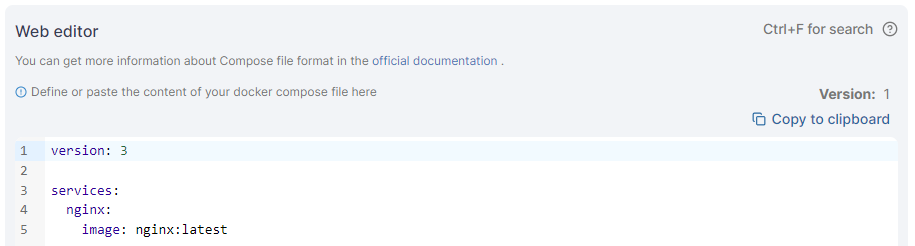
Use the web editor to define the services for your deployment.
{% hint style="info" %}
You can search within the web editor at any time by pressing `Ctrl-F` (or `Cmd-F` on Mac).
The web editor will visually highlight invisible special characters such as non-breaking spaces, helping you identify hidden characters that may cause unexpected errors in your configuration.
{% endhint %}
### Upload
Click **Select a file** to upload a file from your computer containing your stack definition.
### Repository
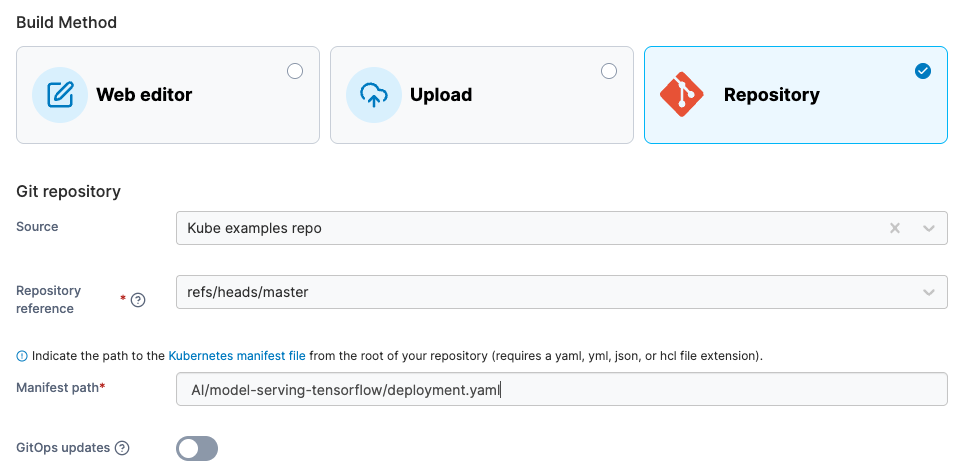
Enter the information about your Git repository to deploy your Edge Stack from Git.
| Field/Option | Overview |
| -------------------- | ---------------------------------------------------------------------------------------------------- |
| Source | Select your Git repository from your list of preconfigured [sources](/user/app-delivery/sources.md). |
| Repository reference | Select the reference to use when deploying the stack (for example, the branch). |
| Manifest path | Enter the path to the manifest file from the root of the repository. |
| GitOps updates | Toggle this on to enable GitOps updates (see below). |
#### GitOps updates
{% hint style="info" %}
This feature is only available in [Portainer Business Edition](https://www.portainer.io/business-upsell?from=ca-file).
{% endhint %}
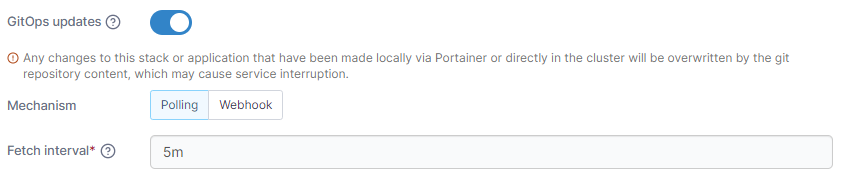
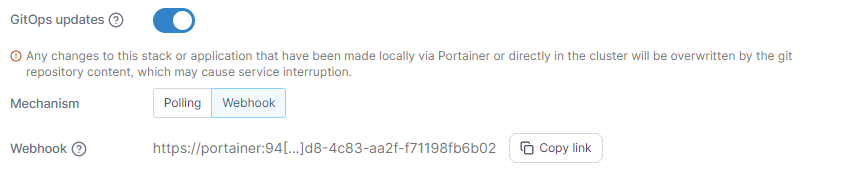
Portainer supports automatically updating your Edge Stacks deployed from Git repositories. To enable this, toggle on **GitOps updates** and configure your settings.
{% hint style="info" %}
For more detail on how automatic updates function under the hood, have a look at [this FAQ](/faqs/troubleshooting/stacks-deployments-and-updates/how-do-automatic-updates-for-stacks-applications-work.md).
{% endhint %}
| Field/Option | Overview |
| -------------- | --------------------------------------------------------------------------------------------------------------------------------------------------------------------------------------------------------------------------------------------------------------------------------------------------------------------------------------------- |
| Mechanism |
Select the method to use when checking for updates:
Polling: Periodically poll the Git repository from Portainer to check for updates to the repository.
Webhook: Generate a webhook URL to add to your Git repository to trigger the update on demand (for example via GitHub actions).
|
| Fetch interval | If **Polling** is selected, how often Portainer will check the Git repository for updates. |
| Webhook | When **Webhook** is selected, displays the webhook URL to use in your integration. Click **Copy link** to copy the webhook URL to the clipboard. |
GitOps updates when using polling
GitOps updates when using webhooks
| | |
| ------------------ | ----------------------------------------------------------------------------------------------------------------------------------------------------------------------------------------------------------------------------------------------------------------------------------------------------------------------------------------------------------------------------------------------------------------------------------------------------------------------------------------------------------------------------------------------------------- |
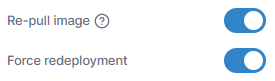
| Re-pull image | When enabled, Portainer checks for an updated image when a redeploy is triggered via webhook or polling. It uses the tag you configured; if no tag is set, or you set `latest`, it uses `latest`. If that tag now points to a new image, Portainer pulls it and redeploys the workload. |
| Force redeployment |
Enable this setting to force the redeployment of your stack at the specified interval (or when the webhook is triggered), overwriting any changes that have been made in the local environment, even if there has been no update to the stack in Git. This is useful if you want to ensure that your Git repository is the source of truth for your stacks and are happy with the local stack being replaced.
If this option is left disabled, automatic updates will only trigger if Portainer detects a change in the remote Git repository.
|
## Additional settings
### Webhooks
{% hint style="info" %}
This feature is only available in [Portainer Business Edition](https://www.portainer.io/business-upsell?from=ca-file).
{% endhint %}
For the Web editor and Upload build methods you can choose to enable an Edge Stack webhook. This webhook will allow you to trigger updates to the stack by sending a POST request to a specific URL, instructing Portainer to pull the most up to date version of the associated image and re-deploy the stack.
{% hint style="info" %}
For Git deployed stacks, this functionality is available via [GitOps updates](#gitops-updates).
{% endhint %}
### Registry
{% hint style="info" %}
This feature is only available in [Portainer Business Edition](https://www.portainer.io/business-upsell?from=ca-file).
{% endhint %}
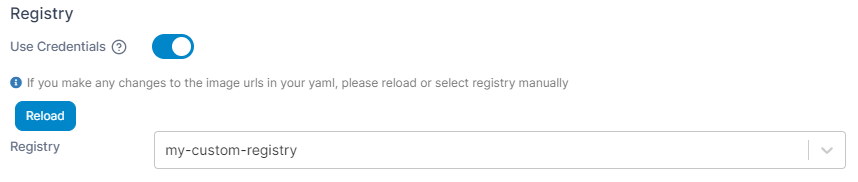
If your stack requires access to images in private registries, you can specify which registry to use as part of the deployment.
### Update configurations
{% hint style="info" %}
This feature is only available in [Portainer Business Edition](https://www.portainer.io/business-upsell?from=ca-file).
{% endhint %}
This section lets you define the method in which your stack updates are deployed across your Edge devices. You can choose to deploy to **All edge devices at once**, or select **Parallel edge device(s)** to specify how many devices to update concurrently.
{% hint style="warning" %}
These settings do **not** apply to the *initial* provision of your Edge Stack. These only apply to the process that will occur when your stack is updated *after* deployment.
{% endhint %}
If **Parallel edge device(s)** is selected, you can choose to either deploy in static group sizes or in an exponential rollout strategy. For static group sizes, choose the **Number of device(s)** option and specify your group size.
For an exponential rollout, choose the **Exponential rollout** option and specify how many devices to start with, then select the multiplier to apply to the initial size. For example, selecting a start size of 5 and a multiplier of 2, stack updates would be rolled out to 5 devices, then 10 (5 x 2), then 20 (10 x 2), and so forth.
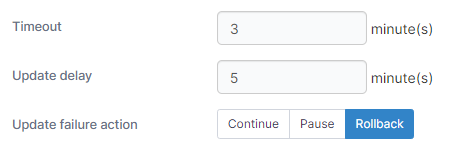
When using parallel rollouts, you can also specify the **Timeout** (in minutes) before Portainer considers the update to have failed, as well as the **Update delay** (in minutes) between each group of updates are applied.
In addition, you can define the **Update failure action** that will be taken if the update fails:
* **Continue** will move on to the next group of devices to update.
* **Pause** will halt the update process but will keep the update applied to any devices that have already been deployed to.
* **Rollback** will halt the update process and roll back the update on devices already updated.
Once the configuration is completed, click **Deploy the stack**.