> For the complete documentation index, see [llms.txt](https://docs.portainer.io/llms.txt). Markdown versions of documentation pages are available by appending `.md` to page URLs; this page is available as [Markdown](https://docs.portainer.io/user/app-delivery/sources/git.md).
# Add a new Git Repository source
{% hint style="warning" %}
Portainer's Git deployment functionality does not currently support the use of Git submodules. If your repository includes submodules, they will not be pulled as part of the deployment. We [hope to add support](https://github.com/orgs/portainer/discussions/9767) for submodules in a future release.
{% endhint %}
{% hint style="warning" %}
Symlinks within a Git repository are not supported. Repositories containing symlinks will not be deployed successfully.
{% endhint %}
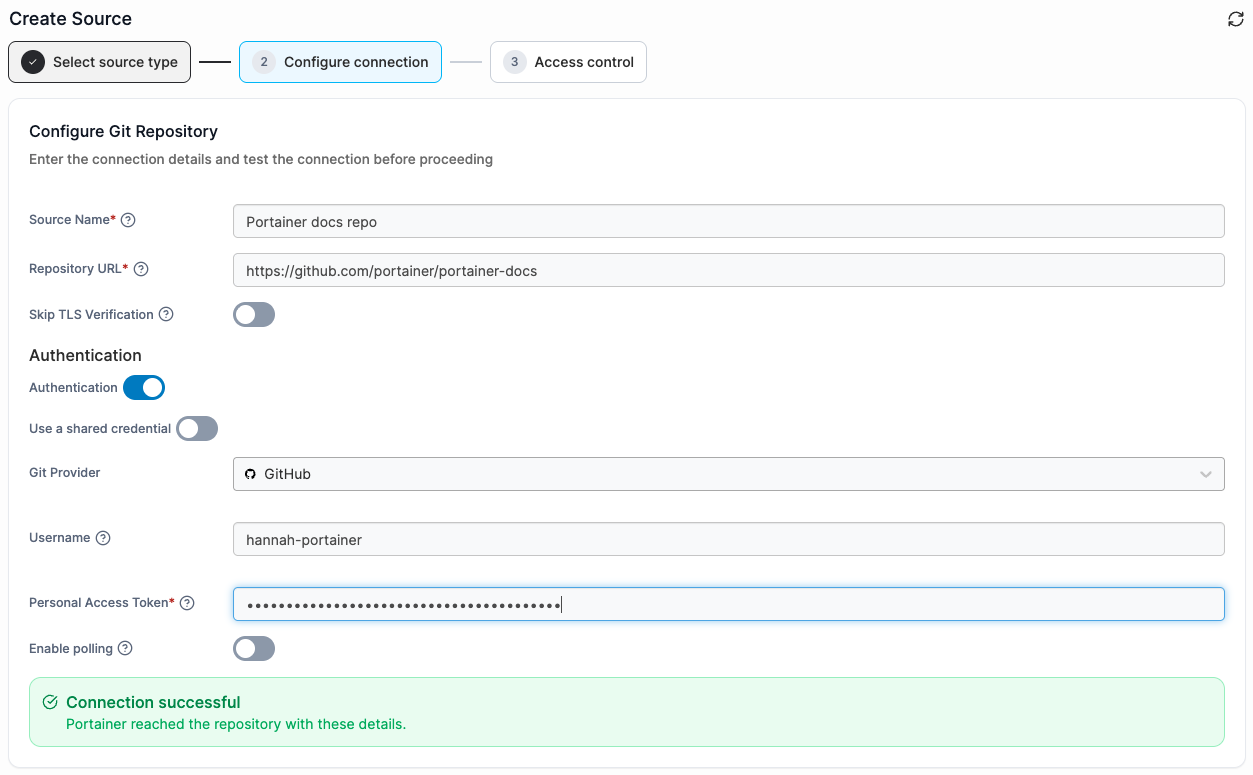
To add a new source from a Git Repository (GitHub, GitLab, Bitbucket, etc.), select **Sources** in the left hand menu, select **Add new** at the top right of the page, then fill in the form using the details below as a guide.
As you enter your details, your connection will be checked and reported at the bottom of the form.
| | |
| -------------------------------- | ---------------------------------------------------------------------------------------------------------------------------------------------------------------------------------------------------------------------------------------------------------------------------------------------------------------- |
| Source Name | Give your source a descriptive name. |
| Repository URL | Enter the URL to your Git repository. |
| Skip TLS Verification | Enable this option to skip verification of your Git repository's TLS certificate. |
| Authentication | Enable this if your Git repository requires authentication. |
| Use a shared credential | Enable this to use an existing [shared credential](/admin/settings/credentials.md) instead of providing authentication details. |
| Git provider | Select your Git provider from the drop down menu, the authentication details will change based on your selection. |
| Authorization type | When providing details for a **Custom** Git Provider, select if you would like to authorize with a password (Basic), or an Access Token (Token). |
| Username | Enter your the username for your Git provider account. |
| Personal Access Token / Password | When Authentication is enabled, enter your personal access token or password. Ensure your token has repository read permissions, see the [Git authentication token permissions FAQ](https://docs.portainer.io/faqs/getting-started/what-scopes-are-required-for-github-gitlab-and-bitbucket-tokens) for details. |
| Enable polling | When enabled, Portainer periodically fetches this repository to detect changes. |
| Fetch interval | When **enable polling** is selected, specify how frequently polling occurs using syntax such as, 5m = 5 minutes, 24h = 24 hours, 6h40m = 6 hours and 40 minutes. |
Select **Continue** when you have completed your details and have a successful connection.
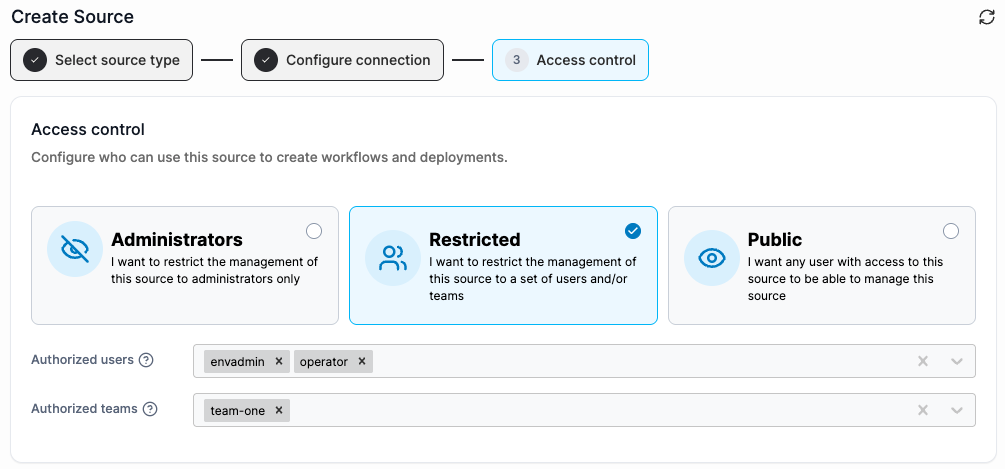
Finally, configure who can use the source or edit the source's connection details. Choose one of the following access levels:
* **Administrators:** Only admin users can edit and use the source.
* **Restricted:** Specify any **Authorized users** and **Authorized teams** permitted to edit and use the source. Only these users and teams - plus admins - will have access.
* **Public:** Any user with access to this environment can edit and use the source.
Select **Create** to save your source.