> For the complete documentation index, see [llms.txt](https://docs.portainer.io/llms.txt). Markdown versions of documentation pages are available by appending `.md` to page URLs; this page is available as [Markdown](https://docs.portainer.io/user/docker/volumes/add.md).

# Add a new volume

## Adding a local volume

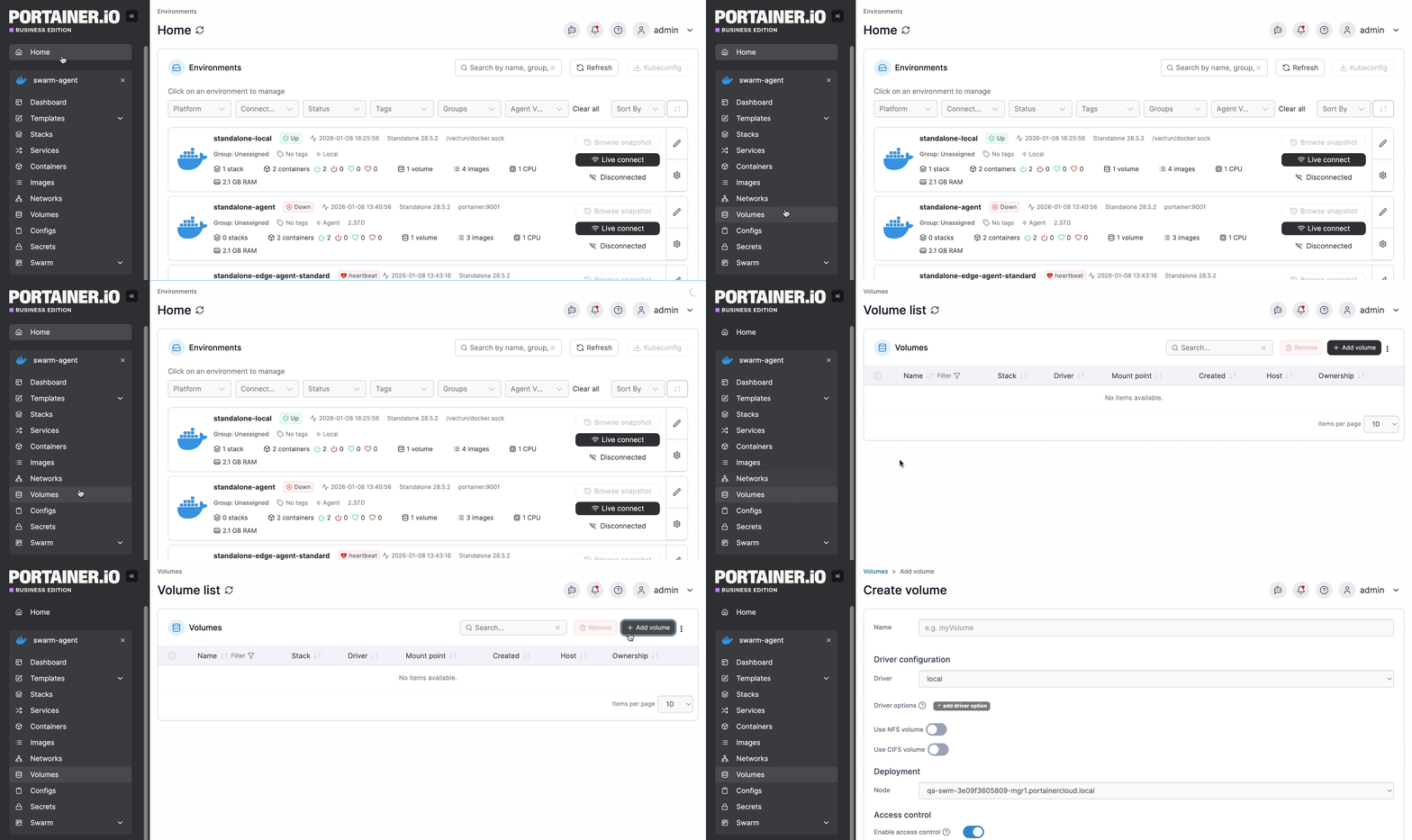
From the menu select **Volumes** then click **Add volume**.

<figure><img src="https://content.gitbook.com/content/MmwXfSb4bP3JyB8BLrAf/blobs/67PB7AaS0T0UqQbzpllS/Add-volume.gif" alt=""><figcaption></figcaption></figure>

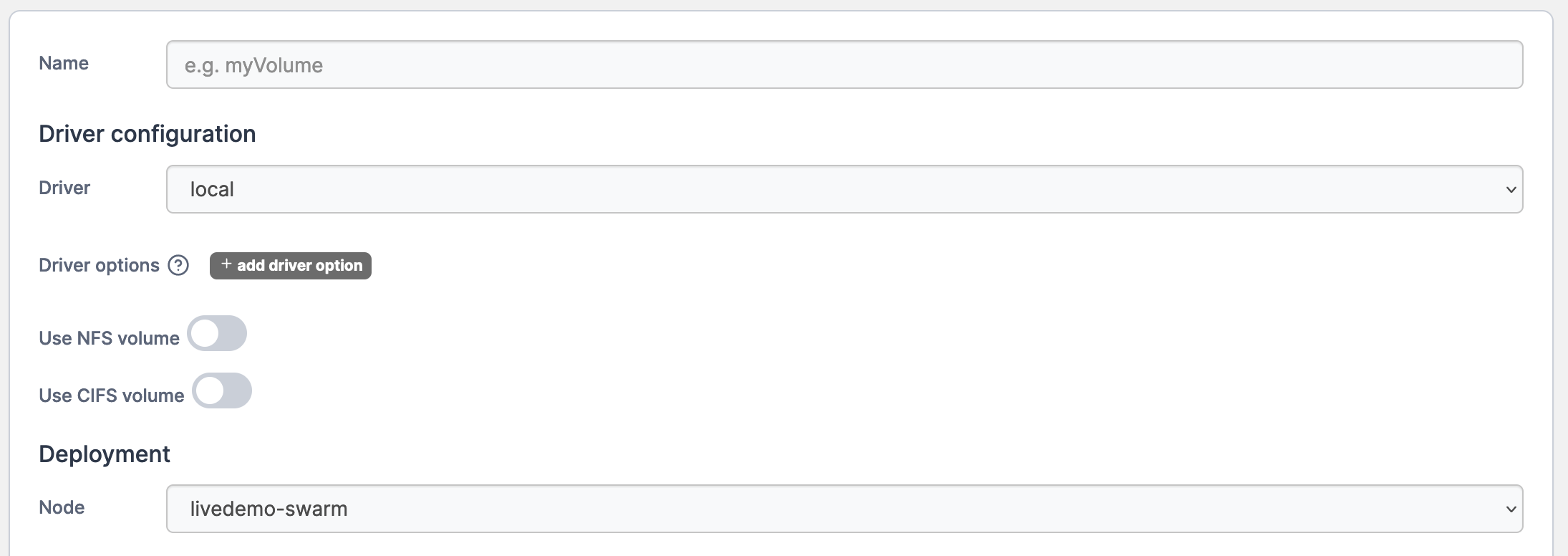
Complete the information in the **Create volume** screen, using the table below as a guide.

| Field/Option    | Overview                                                            |
| --------------- | ------------------------------------------------------------------- |
| Name            | Give the volume a descriptive name.                                 |
| Driver          | Select `local`.                                                     |
| Use NFS volume  | Toggle this off.                                                    |
| Use CIFS volume | Toggle this off.                                                    |
| Deployment      | On a multi-node cluster, define the node that will hold the volume. |

<figure><img src="https://content.gitbook.com/content/MmwXfSb4bP3JyB8BLrAf/blobs/SCOV3goH0n4IlB5mOSri/2.15-docker_volumes_create_volume.png" alt=""><figcaption></figcaption></figure>

When you're finished, click **Create the volume**.

## Adding an NFS volume

{% hint style="info" %}
In Portainer, you can mount an NFS volume to persist the data of your containers.
{% endhint %}

From the menu select **Volumes** then click **Add volume**.

<figure><img src="https://content.gitbook.com/content/MmwXfSb4bP3JyB8BLrAf/blobs/67PB7AaS0T0UqQbzpllS/Add-volume.gif" alt=""><figcaption></figcaption></figure>

Complete the information in the **Create volume** screen, using the table below as a guide.

| Field/Option    | Overview                                                            |
| --------------- | ------------------------------------------------------------------- |
| Name            | Give the volume a descriptive name.                                 |
| Driver          | Select `local`.                                                     |
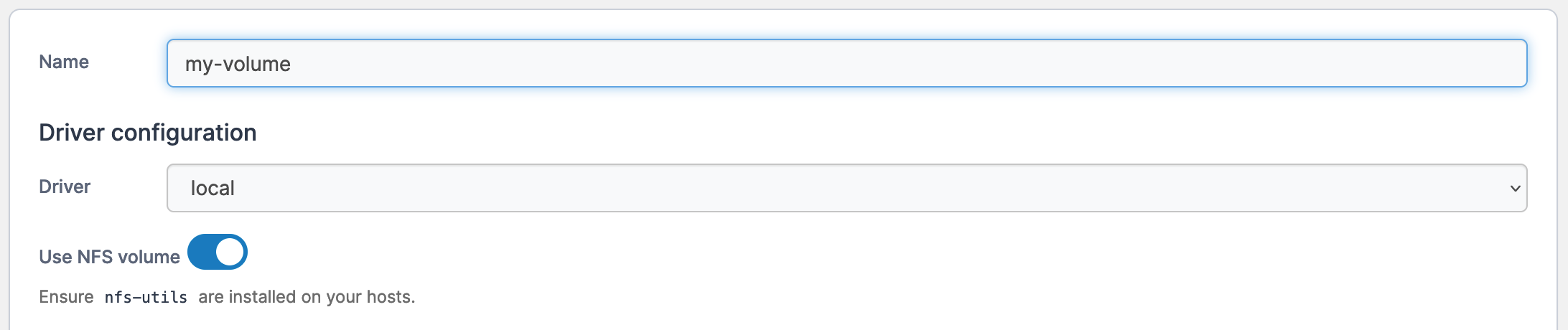
| Use NFS volume  | Toggle this on.                                                     |
| Use CIFS volume | Toggle this off.                                                    |
| Deployment      | On a multi-node cluster, define the node that will hold the volume. |

<figure><img src="https://content.gitbook.com/content/MmwXfSb4bP3JyB8BLrAf/blobs/FI31dO9lARuBveBegVZN/2.15-docker_volumes_create_volume_nfs.png" alt=""><figcaption></figcaption></figure>

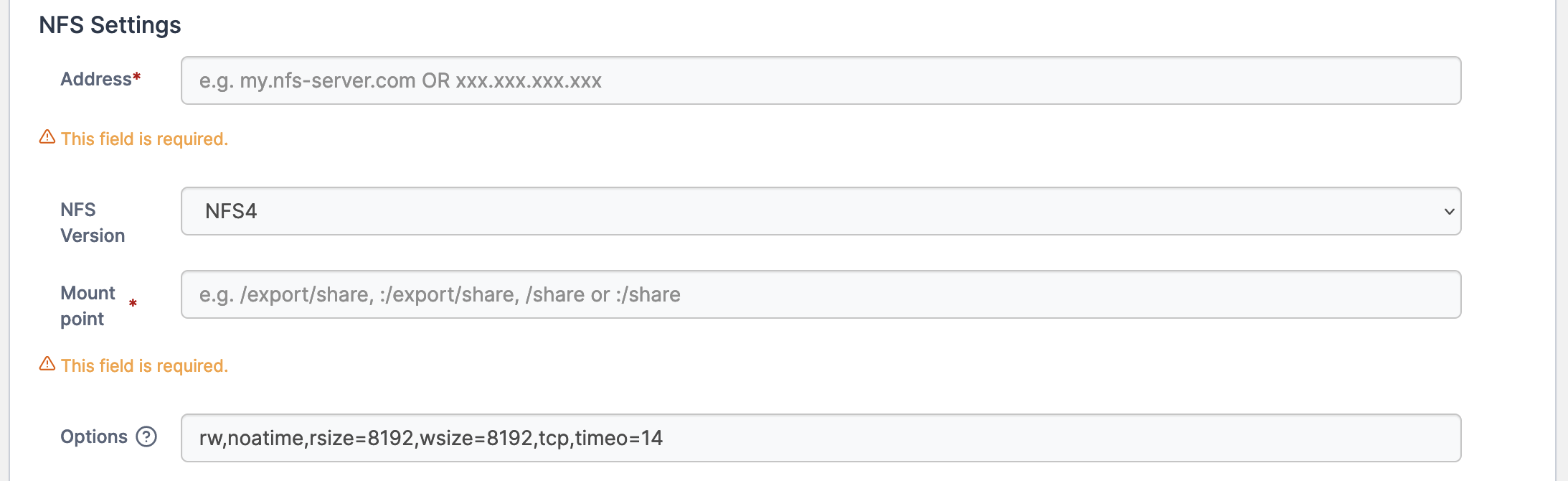
Under the **NFS Settings** section, complete the following.

| Field/Option | Overview                                                              |
| ------------ | --------------------------------------------------------------------- |
| Address      | Enter the hostname or IP address of your NFS server.                  |
| NFS Version  | Select the NFS version that your NFS server uses.                     |
| Mount point  | Enter the path where the volume is mounted, for example `/mnt/nfs01`. |
| Options      | Leave the default values.                                             |

<figure><img src="https://content.gitbook.com/content/MmwXfSb4bP3JyB8BLrAf/blobs/z7inHAt5LXbApU6Z8l7h/2.15-docker_volumes_create_volume_nfs_settings.png" alt=""><figcaption></figcaption></figure>

When you're finished, click **Create the volume**.

## Adding a CIFS volume

{% hint style="info" %}
In Portainer, you can mount a CIFS volume to persist the data of your containers.
{% endhint %}

From the menu select **Volumes** then click **Add volume**.

<figure><img src="https://content.gitbook.com/content/MmwXfSb4bP3JyB8BLrAf/blobs/67PB7AaS0T0UqQbzpllS/Add-volume.gif" alt=""><figcaption></figcaption></figure>

Complete the information in the **Create volume** screen, using the table below as a guide.

| Field/Option    | Overview                                                            |
| --------------- | ------------------------------------------------------------------- |
| Name            | Give the volume a descriptive name.                                 |
| Driver          | Select `local`.                                                     |
| Use NFS volume  | Toggle this off.                                                    |
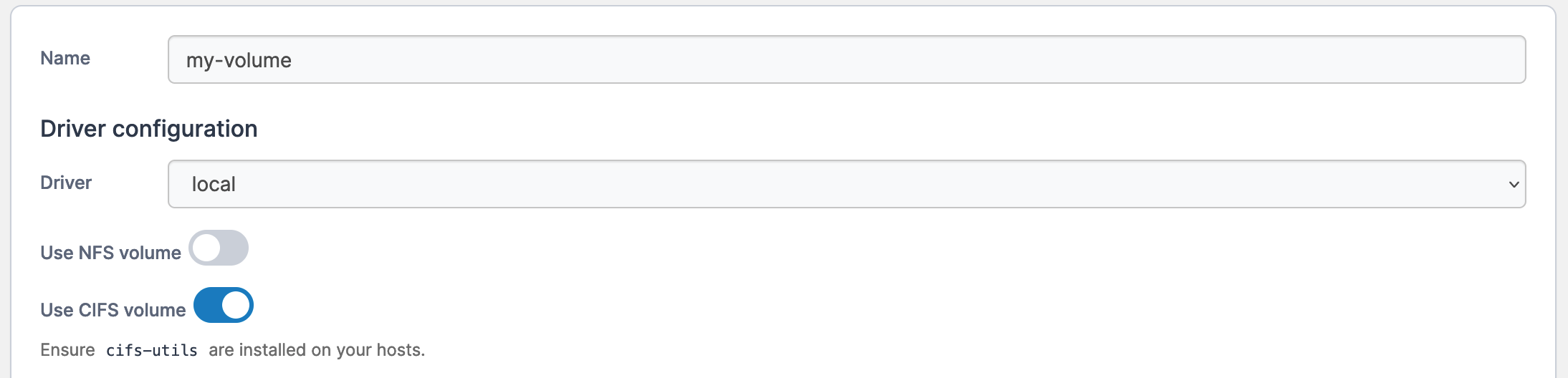
| Use CIFS volume | Toggle this on.                                                     |
| Deployment      | On a multi-node cluster, define the node that will hold the volume. |

<figure><img src="https://content.gitbook.com/content/MmwXfSb4bP3JyB8BLrAf/blobs/qr0RuCHLWvSvzPGxNG2m/2.15-docker_volumes_create_volume_cifs.png" alt=""><figcaption></figcaption></figure>

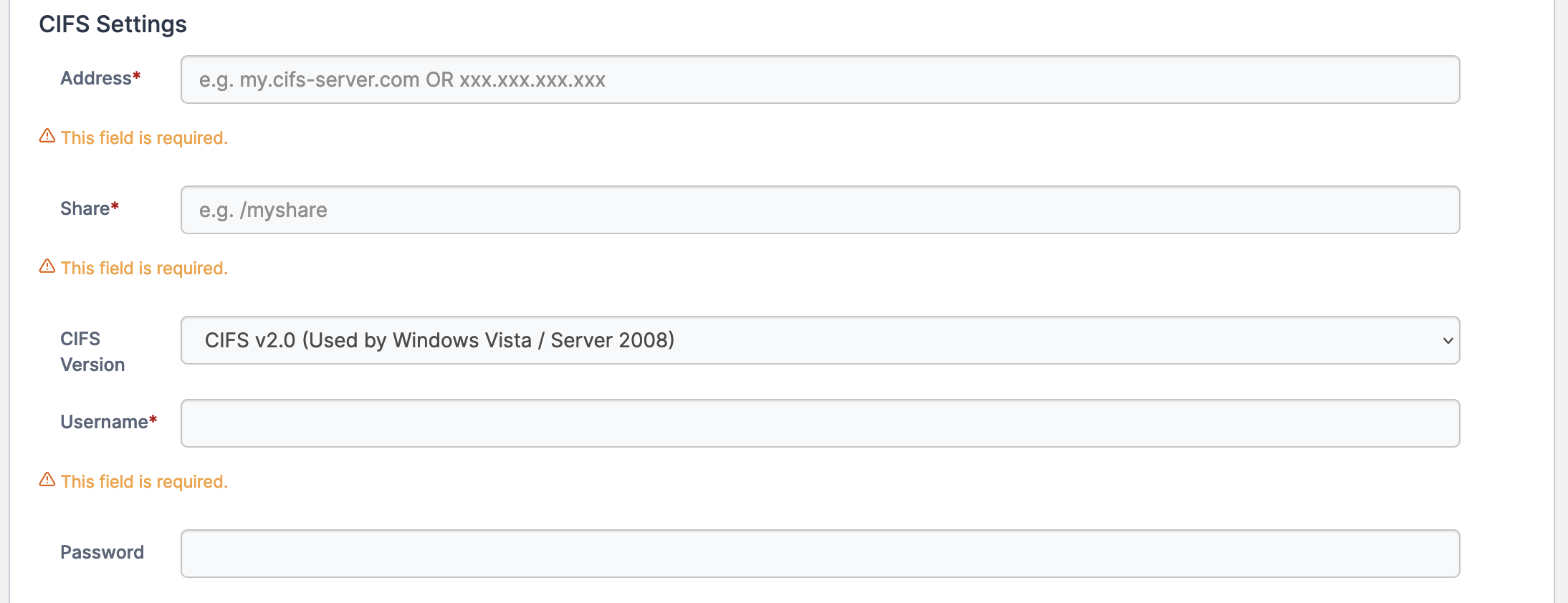
Under the **CIFS Settings** section, complete the following:

| Field/Option | Overview                                    |
| ------------ | ------------------------------------------- |
| Address      | Enter the CIFS server name or IP address.   |
| Share        | Enter the name of the share resource.       |
| CIFS Version | Select the CIFS version that you are using. |
| Username     | Enter the user to authenticate.             |
| Password     | Enter the password to authenticate.         |

<figure><img src="https://content.gitbook.com/content/MmwXfSb4bP3JyB8BLrAf/blobs/9ejsFXyLmLOcjLiBz8b0/2.15-docker_volumes_create_volume_cifs_settings.png" alt=""><figcaption></figcaption></figure>

When you're finished, click **Create the volume**.

## Adding a tmpfs volume

From the menu select **Volumes** then click **Add volume**.

<figure><img src="https://content.gitbook.com/content/MmwXfSb4bP3JyB8BLrAf/blobs/67PB7AaS0T0UqQbzpllS/Add-volume.gif" alt=""><figcaption></figcaption></figure>

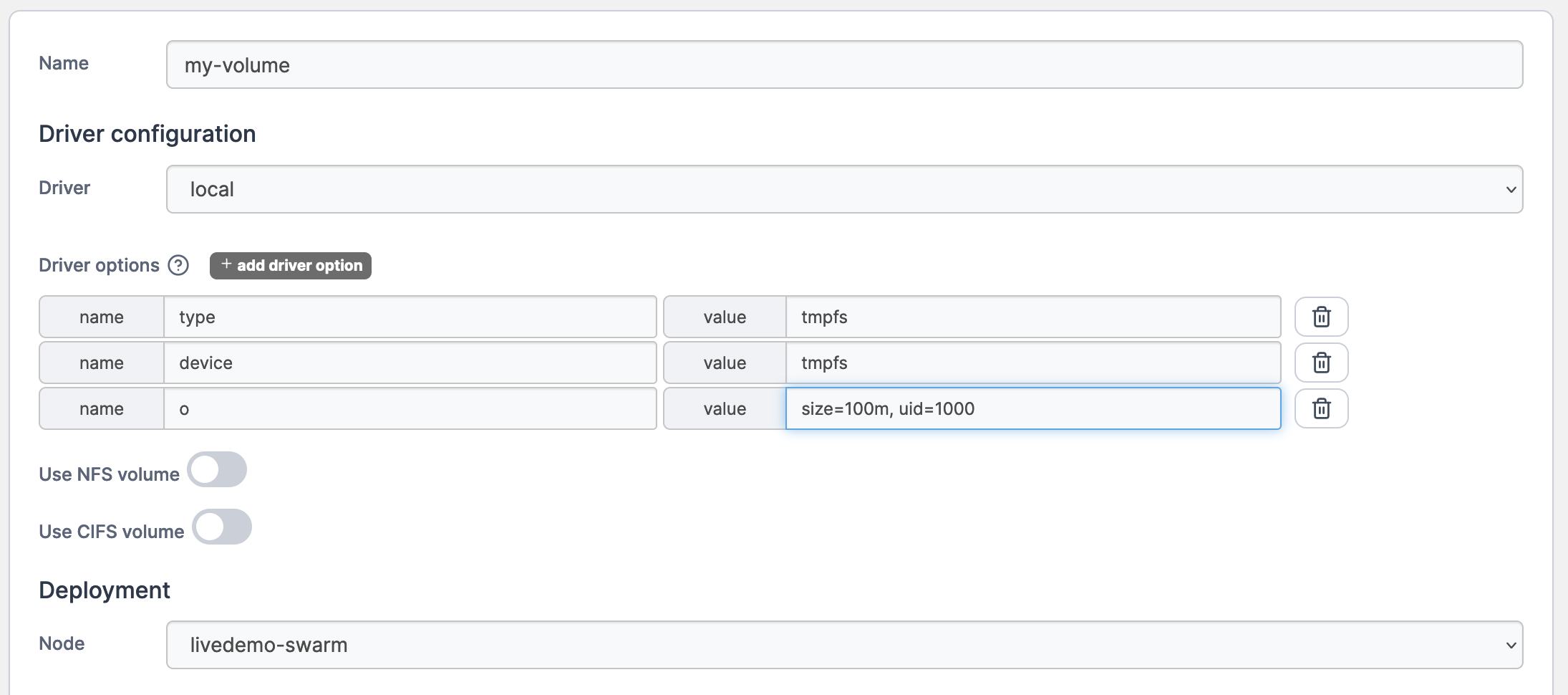
Complete the information in the **Create volume** screen, using the table below as a guide.

| Field/Option    | Overview                                                                                                                                                                                                                                                                          |
| --------------- | --------------------------------------------------------------------------------------------------------------------------------------------------------------------------------------------------------------------------------------------------------------------------------- |
| Name            | Give the volume a descriptive name.                                                                                                                                                                                                                                               |
| Driver          | Select `local`.                                                                                                                                                                                                                                                                   |
| Driver options  | Click **add driver option** then add the following name/value combinations:                                                                                                                                                                                                       |
|                 | <ul><li><p>name: <code>type</code></p><p>value: <code>tmpfs</code></p></li><li><p>name: <code>device</code></p><p>value: <code>tmpfs</code></p></li><li>name: <code>o</code></li><li>value: <code>size=100m,uid=1000</code> (customize these values to suit your needs)</li></ul> |
| Use NFS volume  | Toggle this off.                                                                                                                                                                                                                                                                  |
| Use CIFS volume | Toggle this off.                                                                                                                                                                                                                                                                  |
| Deployment      | On a multi-node cluster, define the node that will hold the volume.                                                                                                                                                                                                               |

<figure><img src="https://content.gitbook.com/content/MmwXfSb4bP3JyB8BLrAf/blobs/4LU1fm0ERspu88SlS6Rd/2.15-docker_volumes_create_volume_tmpfs.png" alt=""><figcaption></figcaption></figure>

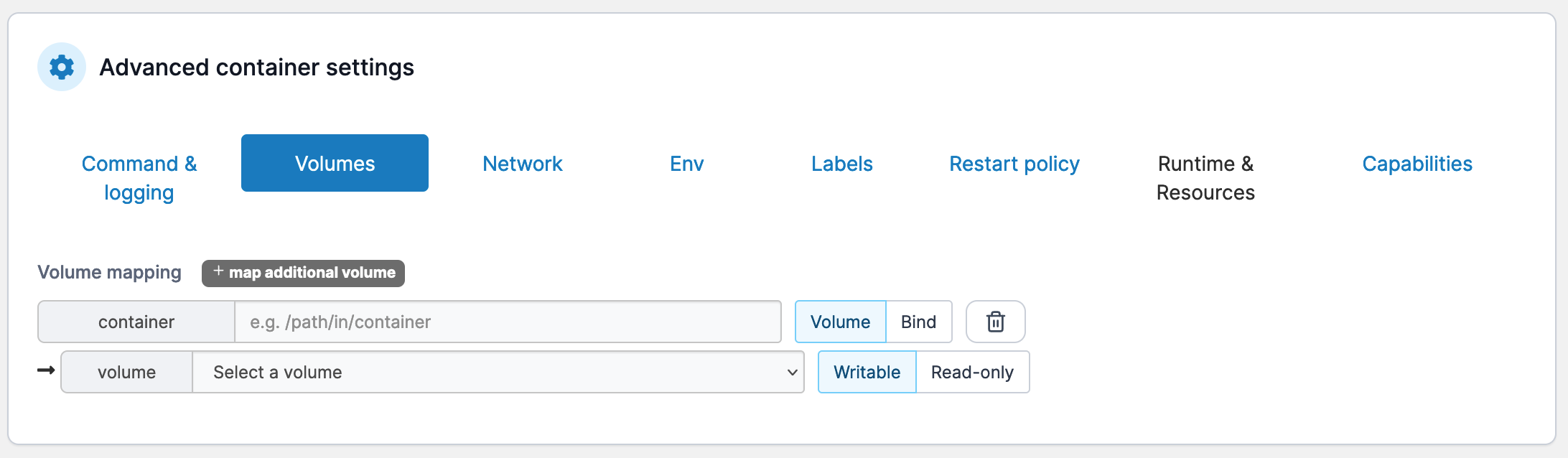
When you're finished, click **Create the volume**. The volume can now be attached to a container in the same way as any other volume.

<figure><img src="https://content.gitbook.com/content/MmwXfSb4bP3JyB8BLrAf/blobs/OcBr5LuisoDs22IULDgP/2.15-docker_volumes_volume_adv_settings.png" alt=""><figcaption></figcaption></figure>

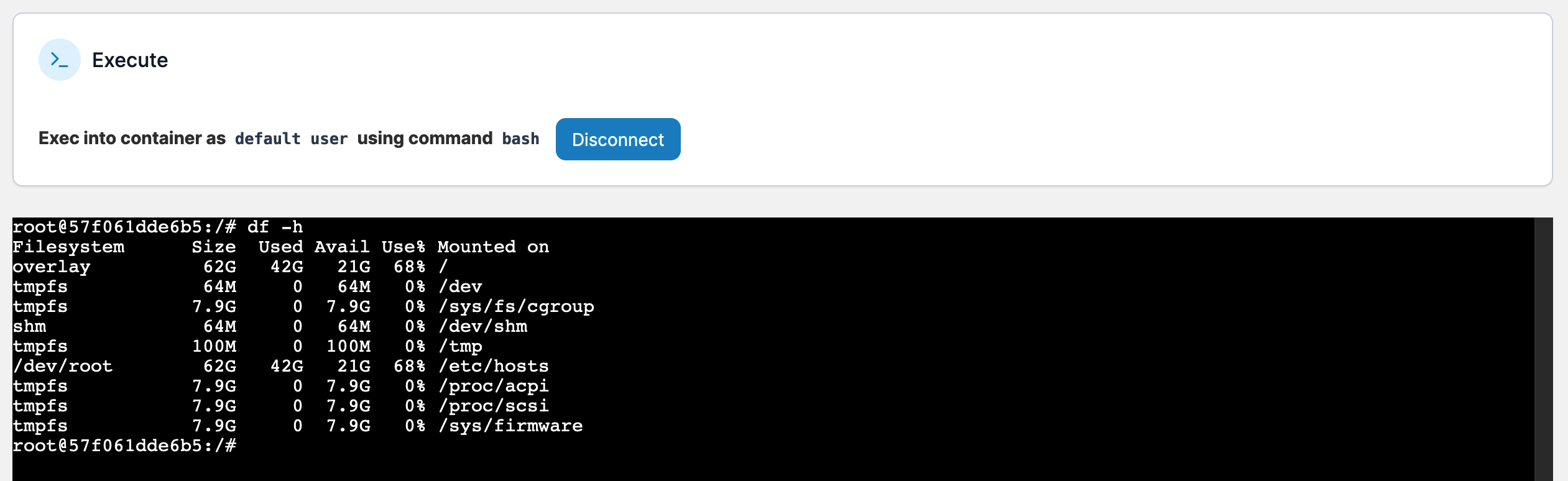
Once attached, you can confirm that the tmpfs volume has been mounted correctly within the container:
<figure><img src="https://content.gitbook.com/content/MmwXfSb4bP3JyB8BLrAf/blobs/4ku6cEn7jYTprB1dbgga/2.15-docker_volumes_volume_console_exec_tmpfs.png" alt=""><figcaption></figcaption></figure>