> For the complete documentation index, see [llms.txt](https://docs.portainer.io/llms.txt). Markdown versions of documentation pages are available by appending `.md` to page URLs; this page is available as [Markdown](https://docs.portainer.io/user/docker/containers/edit.md).
# Edit or duplicate a container
{% hint style="warning" %}
Editing a container effectively creates a new container with the updated settings and replaces the old container.
{% endhint %}
## Editing a running container
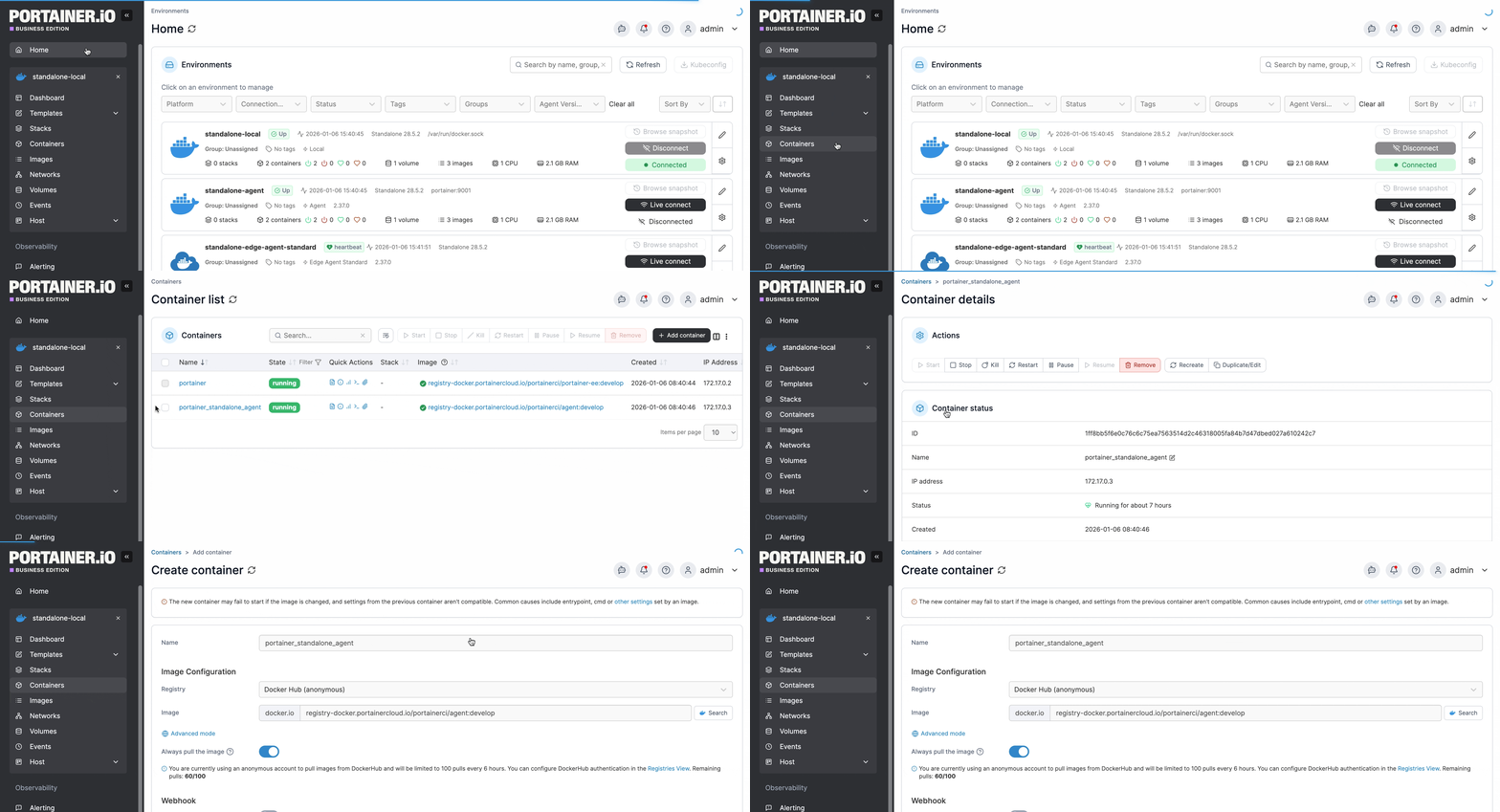
From the menu select **Containers**, select the container you want to edit then click **Duplicate/Edit**.
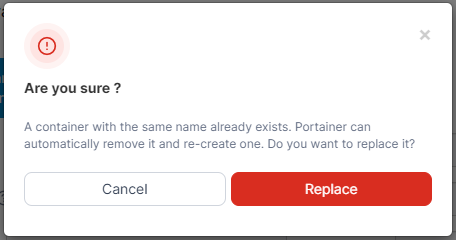
Make the required changes to the container configuration. When you're finished, click **Deploy the container**. When the confirmation message appears, click **Replace**.
If successful, a message will appear confirming that a new container has been created with the new settings, replacing the old container.
## Duplicating a running container
From the menu select **Containers**, select the container you want to duplicate then click **Duplicate/Edit**.
Make the required changes to the container configuration, making sure you enter a new container name in order to create a duplicate. When you're finished, click **Deploy the container**.