> For the complete documentation index, see [llms.txt](https://docs.portainer.io/llms.txt). Markdown versions of documentation pages are available by appending `.md` to page URLs; this page is available as [Markdown](https://docs.portainer.io/admin/settings/edge.md).
# Edge Compute
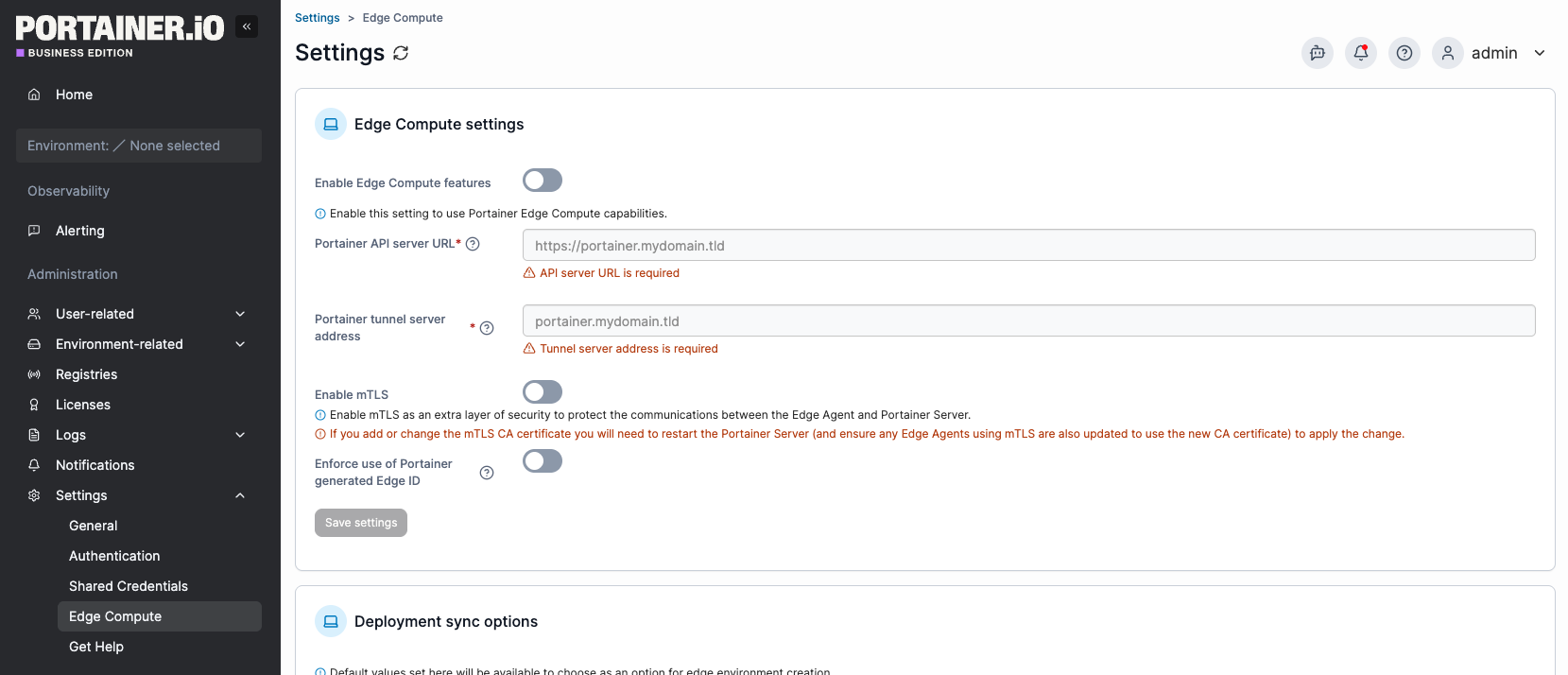
To enable and configure Edge Compute functionality in Portainer, select **Settings** from the menu then select **Edge Compute**.
{% hint style="info" %}
To learn how to use our Edge Compute functionality, please refer to the [Edge Compute](/user/edge.md) section of this documentation.
{% endhint %}
## Edge Compute settings
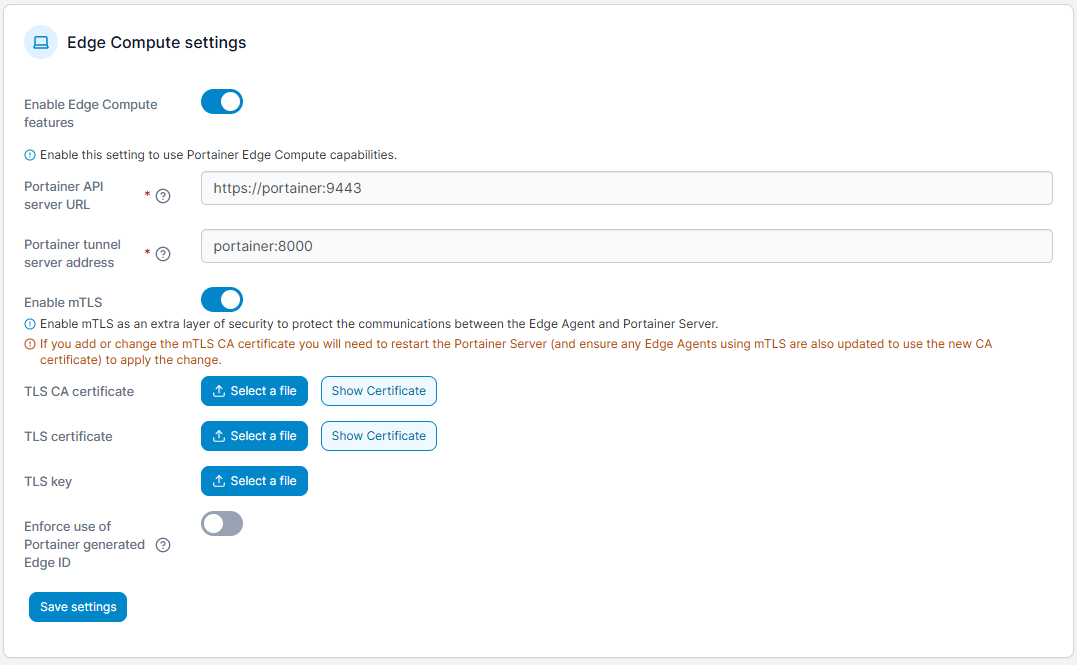
In this section you can use the following options to enable and configure Edge Compute functionality within Portainer.
| Field/Option | Overview |
| ------------------------------------------ | ------------------------------------------------------------------------------------------------------------------------------------------------------------------------------------------------------------------------------------------------------------------------------------------------------------------------------------------------------------------------------------------------------------------------------------------------------------------------------------------------------------------------------------------------------------------------------------------------------------------------------ |
| Enable Edge Compute features | Toggle this on to enable Edge Compute functionality including Edge Device features. |
| Portainer API server URL |
Enter the default URL and port of your Portainer Server instance as it will be seen from your Edge environment. If using a FQDN, ensure that DNS is properly configured to provide this. This value can be overridden when manually deploying an Edge Agent. This feature is only available in Portainer Business Edition.
|
| Portainer tunnel server address |
Enter the default address and port of your Portainer Server instance's tunnel server as it will be seen from your Edge environment. If using a FQDN, ensure that DNS is properly configured to provide this. In most cases, this will be the same address as the Portainer API server URL, but without the protocol and on port 8000. This value can be overridden when manually deploying an Edge Agent. This feature is only available in Portainer Business Edition. For Community Edition users, refer to this GitHub issue.
|
| Use separate mTLS cert |
Enable this toggle to use a separate mTLS certificate for Edge Agent communication. With this option disabled, Edge Agents will use the same TLS certificate as the Portainer UI. For more information on mTLS read our advanced documentation.
|
| TLS CA certificate | When **Use separate mTLS cert** is enabled, select and upload the CA certificate for use with mTLS. When a CA certificate is added, the **Show Certificate** button can be clicked to display the certificate. |
| TLS certificate | When **Use separate mTLS cert** is enabled, select and upload the server certificate for use with mTLS. When a TLS certificate is added, the **Show Certificate** button can be clicked to display the certificate. |
| TLS key | When **Use separate mTLS cert** is enabled, select and upload the key corresponding to the server certificate. |
| Enforce use of Portainer generated Edge ID | Enable this option to require that the Edge ID used by an Edge Agent deployment exist within Portainer's database (in other words, have an environment with the matching ID already created) in order to connect. |
When you are done, click **Save Settings**.
{% hint style="warning" %}
If you add or change the mTLS CA certificate you will need to restart the Portainer Server in order for the change to apply. You should also ensure any Edge Agents that are using mTLS are also updated to use the new CA certificate.
{% endhint %}
## Deployment sync options
This section defines options that apply how Edge Agents sync with the Portainer Server instance.
### Check-in intervals
| Field/Option | Overview |
| --------------------------------- | ------------------------------------------------------------------------------------------ |
| Edge agent default poll frequency | Select how often Edge Agents in standard mode check in with the Portainer Server instance. |
### Async Check-in intervals
The following options apply to Edge Agents deployed in async mode.
| Field/Option | Overview |
| ------------------------------------- | --------------------------------------------------------------------------------------------------------- |
| Edge agent default ping frequency | Select how often Edge Agents in async mode ping back to the Portainer Server instance. |
| Edge agent default snapshot frequency | Select how often Edge Agents in async mode update their snapshot with the Portainer Server instance. |
| Edge agent default command frequency | Select how often Edge Agents in async mode check with the Portainer Server instance for pending commands. |
## Edge Compute access
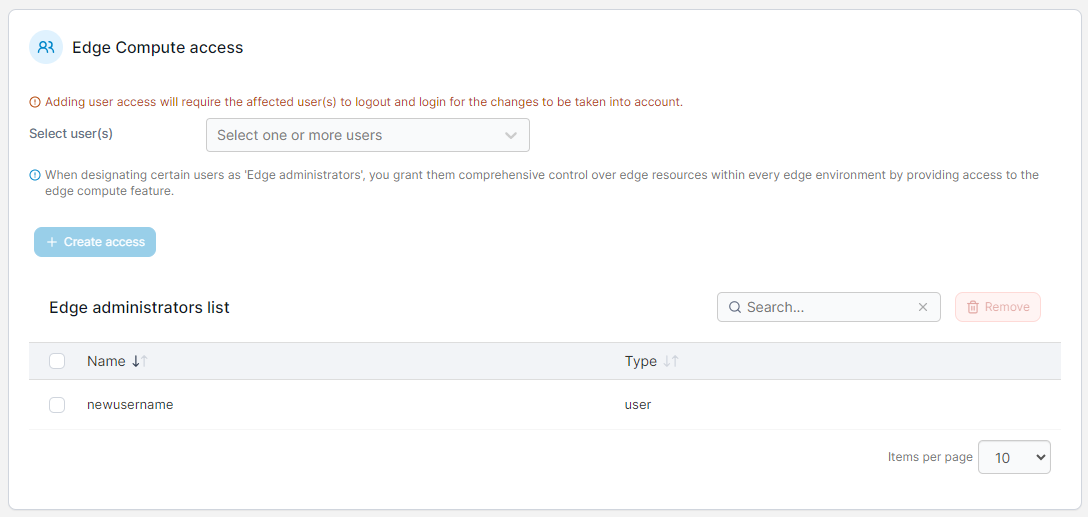
This section lets you configure access to your Edge Compute environments through the use of the **Edge Administrator** role. The Edge Administrator role gives a user comprehensive control over Edge resources within all Edge environments, but does not provide full administrative access to the rest of Portainer.
To add a user as an Edge Administrator, select the username from the **Select user(s)** dropdown and click **Create access**.
To remove a user from the Edge Administrator role, check the box next to their username in the Edge administrators list and click **Remove**.
## Automatic Edge Environment Creation
In this section you can configure how automatic Edge environment configuration functions.
| Field/Option | Overview |
| ------------------------------------ | ----------------------------------------------------------------------------------------------------------------------------------------------------------------------------------------------------------------------------------------------------------------------------- |
| Enable Edge Environment Waiting Room | Toggle this on to enable the [waiting room](/user/edge/waiting-room.md) feature for Edge devices. This will allow any Edge Device that connects to the Portainer instance to automatically associate with Portainer. We recommend leaving this on (the waiting room enabled). |