> For the complete documentation index, see [llms.txt](https://docs.portainer.io/llms.txt). Markdown versions of documentation pages are available by appending `.md` to page URLs; this page is available as [Markdown](https://docs.portainer.io/admin/environments/add/kubernetes/import.md).
# Import an existing Kubernetes environment
{% hint style="warning" %}
Importing an existing Kubernetes environment is a legacy option that does not support edge features or policy management. For most use cases, [the Edge Agent is recommended](/faqs/getting-started/why-do-we-recommend-using-the-edge-agent-instead-of-the-traditional-agent.md).
{% endhint %}
With Portainer you can import your existing Kubernetes environment through the use of a [kubeconfig](https://kubernetes.io/docs/concepts/configuration/organize-cluster-access-kubeconfig/) file. Portainer will use the information in the kubeconfig file to connect to your environment then deploy and configure the Portainer Agent for you.
{% hint style="info" %}
This feature is only available in [Portainer Business Edition](https://www.portainer.io/business-upsell?from=k8s-create-from-kubeconfig).
{% endhint %}
## Requirements
While we have tried to support as many configurations as possible, there are a few requirements in order to fully support the import process:
* Your cluster must have a load balancer configured and enabled.
* Your kubeconfig file must specify `current-context`.
* Your kubeconfig file must be self-contained (i.e., consist of only the one file with no external references).
* Your kubeconfig file must provide cluster admin level credentials, in order for Portainer to deploy the agent on your cluster.
## Generating a kubeconfig file for import
Depending on your environment, there may be different methods for creating a supported kubeconfig file. The following environment types are currently supported:
### On-premise clusters
For an on-premise cluster, you can use the following kubectl command to generate a supported kubeconfig file:
```
kubectl config view --flatten=true --minify=true > kubeconfig.yml
```
### Civo
To create a kubeconfig file from a Civo cluster, log into the Civo dashboard and go to **Kubernetes**. Select the cluster to import and click on **Click to Download** next to the **Kubeconfig** label.
### Linode
To create a kubeconfig file from a Linode cluster, log into the Linode dashboard and click on **Kubernetes** in the left hand menu. Select the cluster to import, and in the top right of the page select **Actions** then **Download Config**.
### DigitalOcean
To create a kubeconfig file from a DigitalOcean cluster, log into the DigitalOcean dashboard and in the left hand menu select **Manage** then **Kubernetes**. Alternatively, go to **Projects**, select the project containing your cluster, then look in the **Clusters** panel. Select the cluster to import, then click the **Kubeconfig** option to download the kubeconfig file.
### Microsoft Azure
To create a kubeconfig file from an Azure cluster, download and install the [Azure CLI](https://docs.microsoft.com/en-us/cli/azure/install-azure-cli) from Microsoft. Start a shell session on Linux or an administrator PowerShell session on Windows, and run the following:
```
az login
```
This command can take a couple of minutes to complete the first time it is used, and involves a browser window opening in order to authenticate you with Azure.
Once this completes and you are authenticated, run the following command:
```
az aks get-credentials --resource-group [resource-group-name] --name [cluster-name] --file ./kubeconfig-azure.yml
```
Replace `[resource-group-name]` with the resource group containing your cluster. Replace `[cluster-name]` with your cluster.
## Importing your kubeconfig
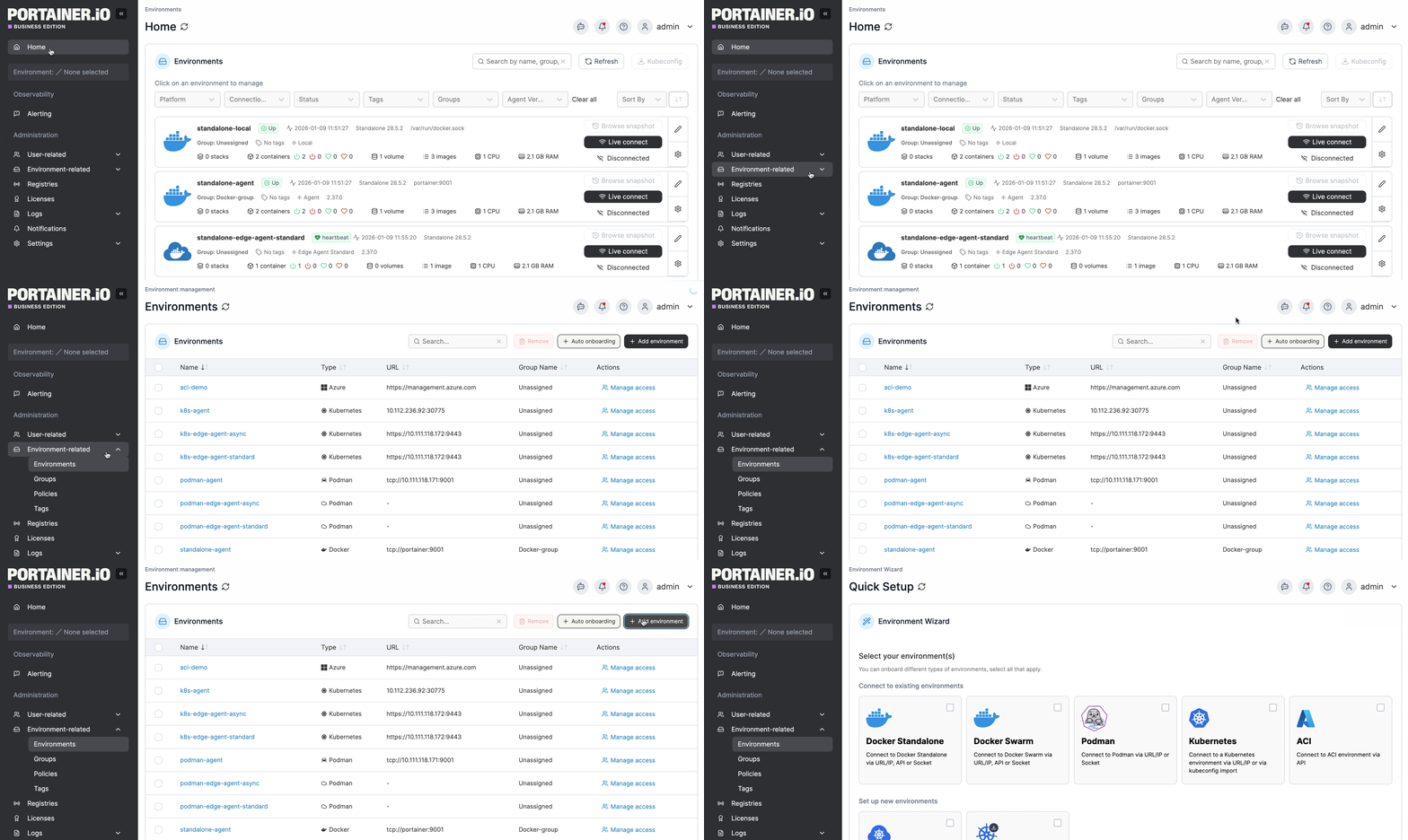
Once you have your kubeconfig file created, from the menu expand **Environment-related**, click **Environments**, then click **Add environment**.
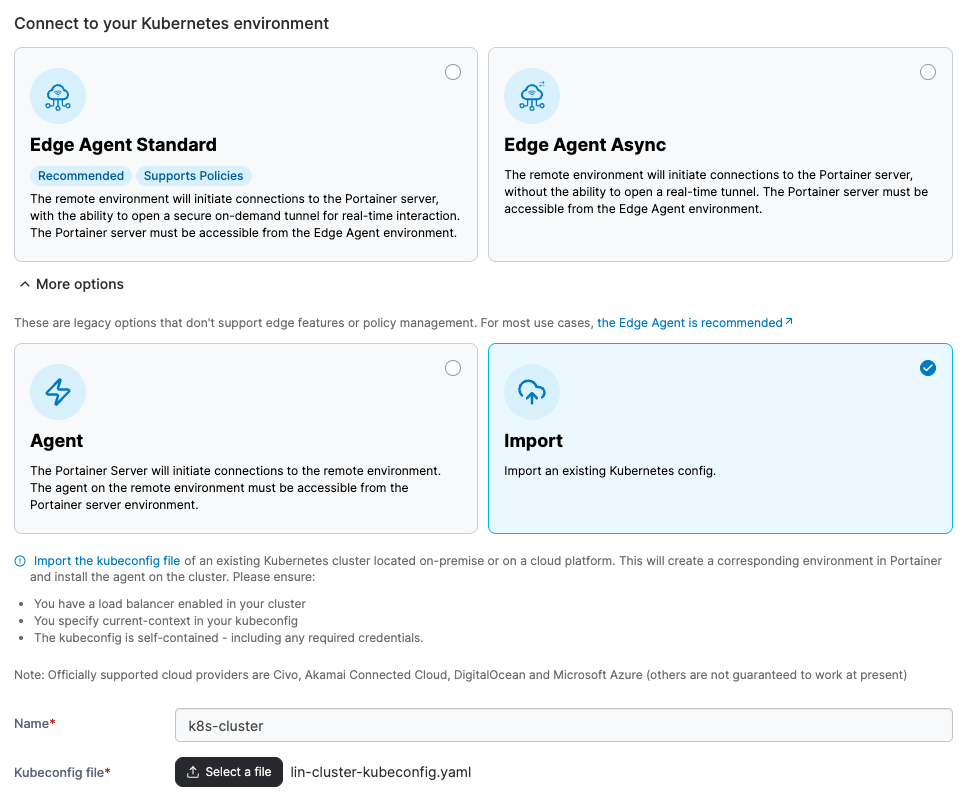
Select the **Kubernetes** option and click **Start Wizard**. Under **More options**, select the **Import** option.
{% hint style="info" %}
The import option is only available in [Portainer Business Edition](https://www.portainer.io/business-upsell?from=k8s-create-from-kubeconfig).
{% endhint %}
Enter a **name** for cluster then click **Select a file** to browse for your kubeconfig file.
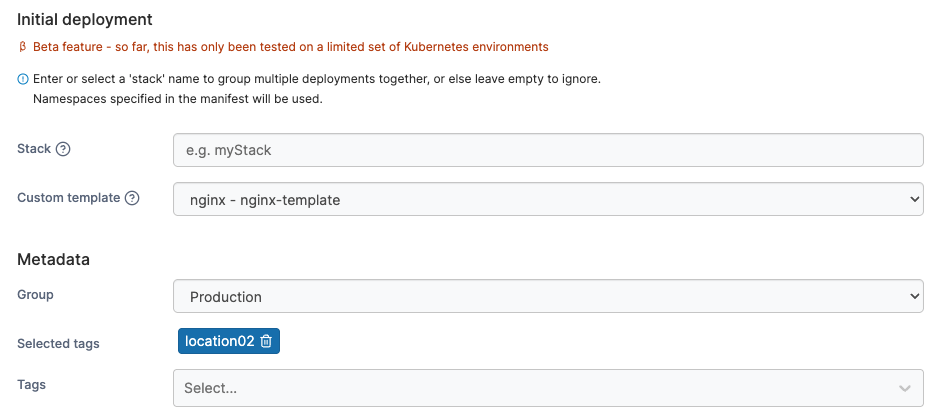
As an optional step you can expand the **More settings** section to customize the deployment further.
| Field/Option | Overview |
| --------------- | ------------------------------------------------------------------------------------------------------------------------------------------------------------------------------------------------------------------------------------------------------------------------------------------------------------------------------------------------------------------------------------------ |
| Stack |
You can specify a stack name to group related resources such as Deployments, DaemonSets, and Pods. This helps organize and manage resources created as part of the same stack.
If required, you can leave this field empty. Kubernetes functionality can also be disabled entirely from the Kubernetes Settings.
|
| Custom Template | Select a custom template to deploy on your cluster. This is handy for pre-loading a new environment with your applications. The template will be deployed in the default namespace unless the template specifies a namespace to use. You can also set any variables the template requires. |
| Group | Select a [group](/admin/environments/groups.md) to add the new environment to once provisioning completes. |
| Tags | Select any [tags](/admin/environments/tags.md) to add to the environment. |
When you're ready, click the **Connect** button. If you have other environments to configure click **Continue** to proceed, otherwise click **Close** to return to the list of environments where you will see the progress of your provision.