

Kubernetes deployment
Define how to deploy your app from one of the Build Method options.
Use the Portainer web editor to write or paste in your build file.
Upload a build file from your computer.
Use a GitHub repo where the build file is stored.

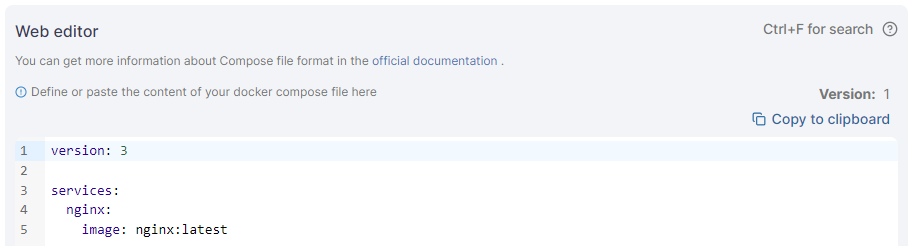
Web editor
Use the web editor to define the services for your deployment.
Upload
Click Select a file to upload a file from your computer containing your stack definition.

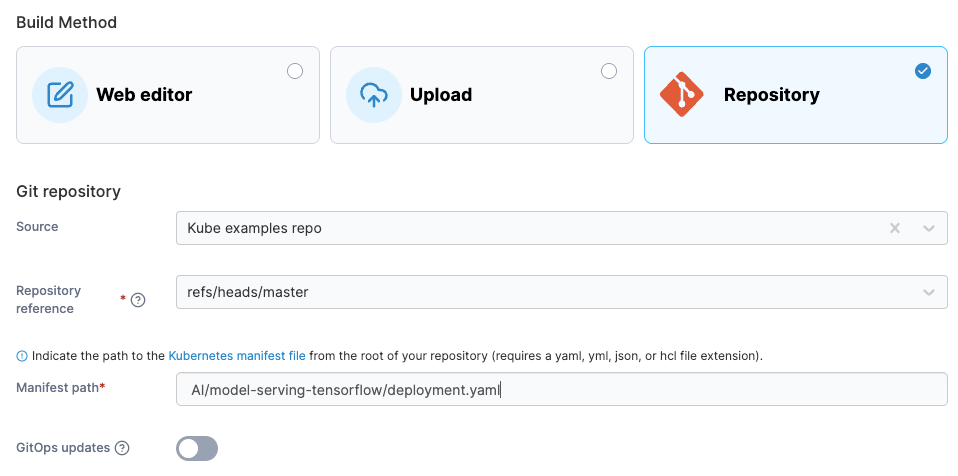
Repository
Enter the information about your Git repository to deploy your Edge Stack from Git.
Source
Select your Git repository from your list of preconfigured sources.
Repository reference
Select the reference to use when deploying the stack (for example, the branch).
Manifest path
Enter the path to the manifest file from the root of the repository.
Create a Webhook
When this is enabled, it displays the webhook URL to use in your integration. Click Copy link to copy the webhook URL to the clipboard.
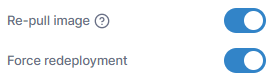
Re-pull image
When enabled, Portainer checks for an updated image when a redeploy is triggered via webhook or polling. It uses the tag you configured; if no tag is set, or you set latest, it uses latest. If that tag now points to a new image, Portainer pulls it and redeploys the workload.
Force redeployment
Enable this setting to force the redeployment of your stack at the specified interval (or when the webhook is triggered), overwriting any changes that have been made in the local environment, even if there has been no update to the stack in Git. This is useful if you want to ensure that your Git repository is the source of truth for your stacks and are happy with the local stack being replaced.
If this option is left disabled, automatic updates will only trigger if Portainer detects a change in the remote Git repository.
Additional settings
Webhooks
For the Web editor and Upload build methods you can choose to enable an Edge Stack webhook. This webhook will allow you to trigger updates to the stack by sending a POST request to a specific URL, instructing Portainer to pull the most up to date version of the associated image and re-deploy the stack.

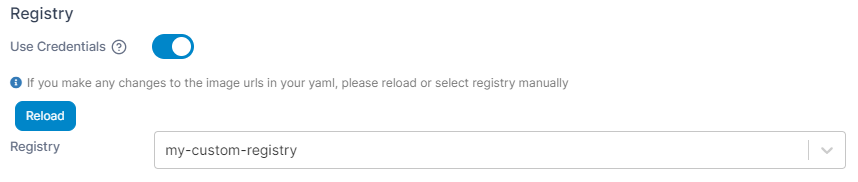
Registry
If your stack requires access to images in private registries, you can specify which registry to use as part of the deployment.
Deployment options
Prune resources
When enabled, updating this artifact will also delete the resources it previously created that the manifest no longer declares. Turning this off leaves those resources running on the cluster with nothing in Portainer pointing at them.
Force recreate
For fields that cannot be changed after a resource is created, enable force recreate to let Portainer delete and recreate resources instead of failing the deployment.

Update configurations
This section lets you define the method in which your stack updates are deployed across your Edge devices. You can choose to deploy to All edge devices at once, or select Parallel edge device(s) to specify how many devices to update concurrently.

If Parallel edge device(s) is selected, you can choose to either deploy in static group sizes or in an exponential rollout strategy. For static group sizes, choose the Number of device(s) option and specify your group size.

For an exponential rollout, choose the Exponential rollout option and specify how many devices to start with, then select the multiplier to apply to the initial size. For example, selecting a start size of 5 and a multiplier of 2, stack updates would be rolled out to 5 devices, then 10 (5 x 2), then 20 (10 x 2), and so forth.

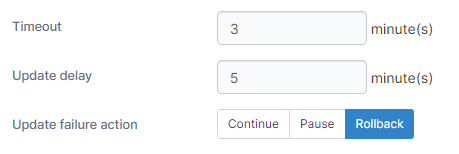
When using parallel rollouts, you can also specify the Timeout (in minutes) before Portainer considers the update to have failed, as well as the Update delay (in minutes) between each group of updates are applied.
In addition, you can define the Update failure action that will be taken if the update fails:
Continue will move on to the next group of devices to update.
Pause will halt the update process but will keep the update applied to any devices that have already been deployed to.
Rollback will halt the update process and roll back the update on devices already updated.
Once the configuration is completed, click Deploy the stack.
Last updated
Was this helpful?