

Groups
Groups organize your environments in Portainer. As an example, you can create groups for development, staging and production to differentiate between environment roles. You can also use groups to define which environments are available to which users.
Creating a group
From the menu expand Environment-related, select Groups, then click Add group.
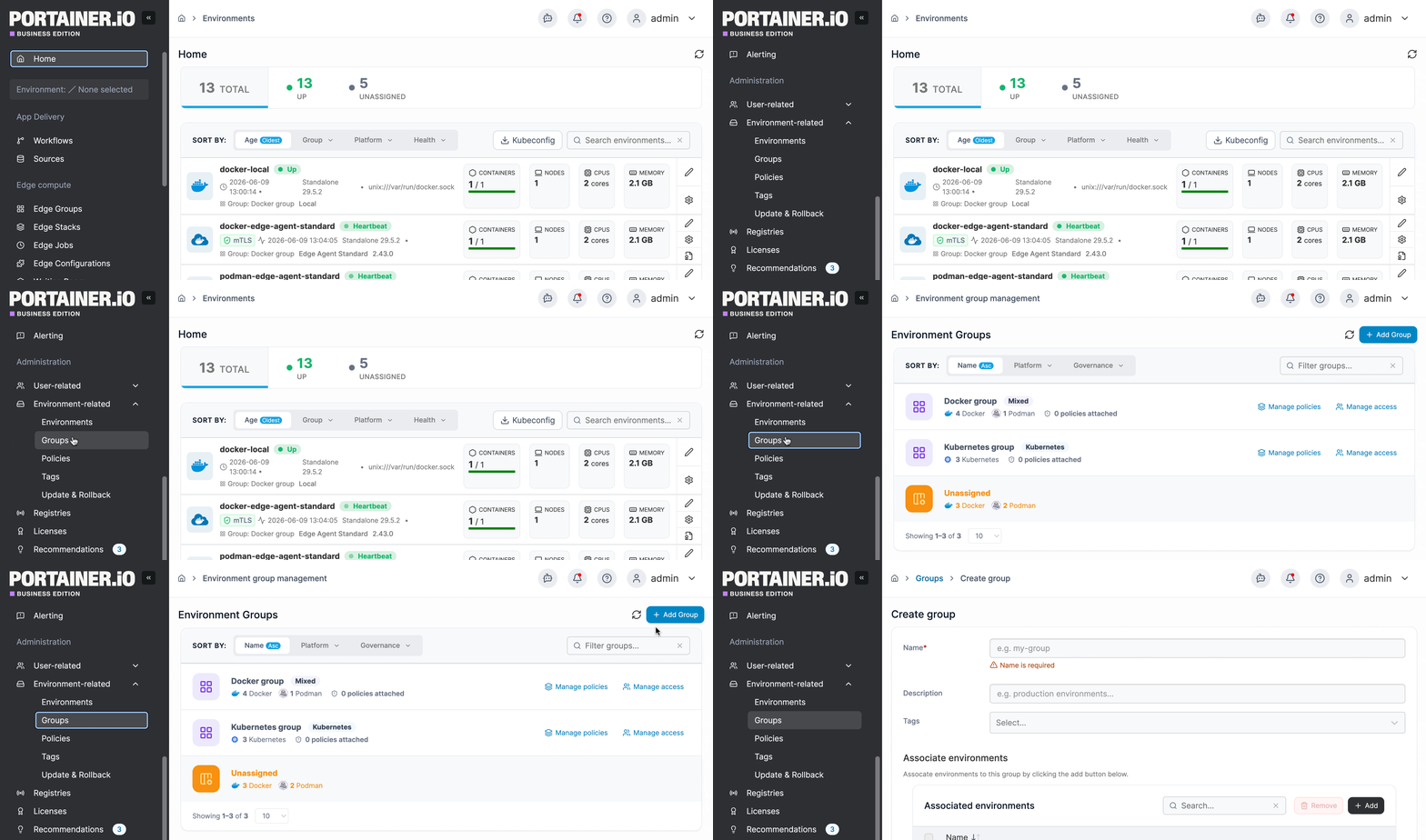
Define the properties of the group, using the table below as a guide.
Name
Give the group a descriptive name.
Description
Optionally describe the group in more detail.
Tags
Apply any tags to the group.
Associated environments
This section lists the environments to be added to the group. Use the Add button in the top right corner of the table to select your environments. To remove an environment from the list, select the checkbox next to the entry and click Remove in the top right corner of the table.
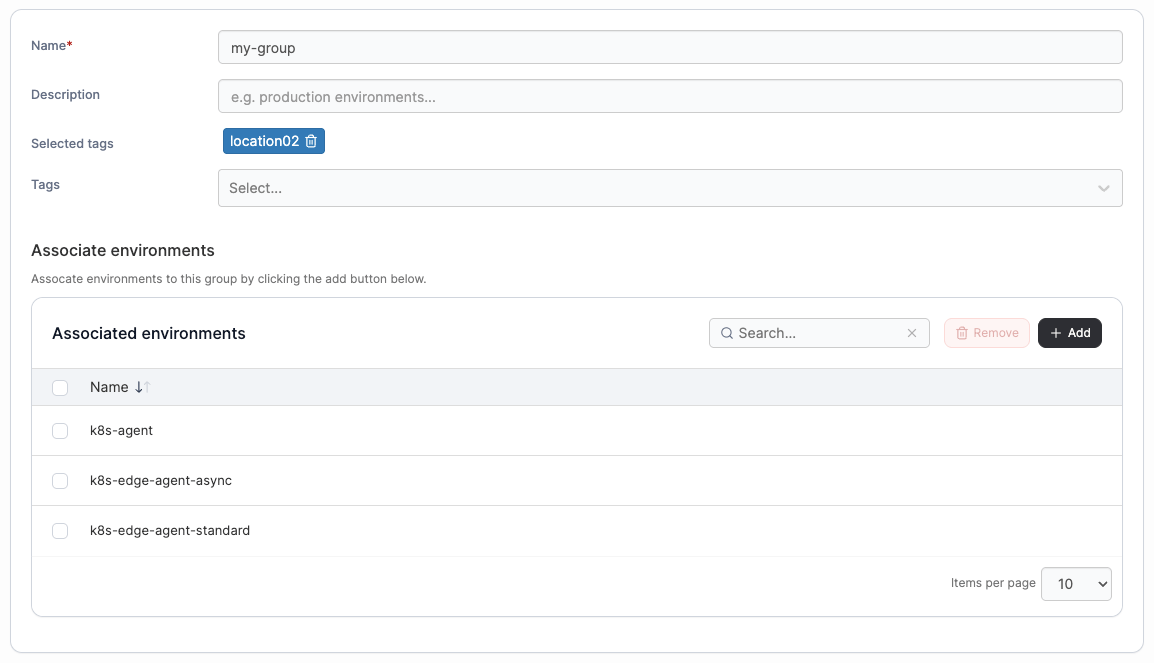
When you're finished, click Create.
Managing or deleting a group
Manage the environments in a group
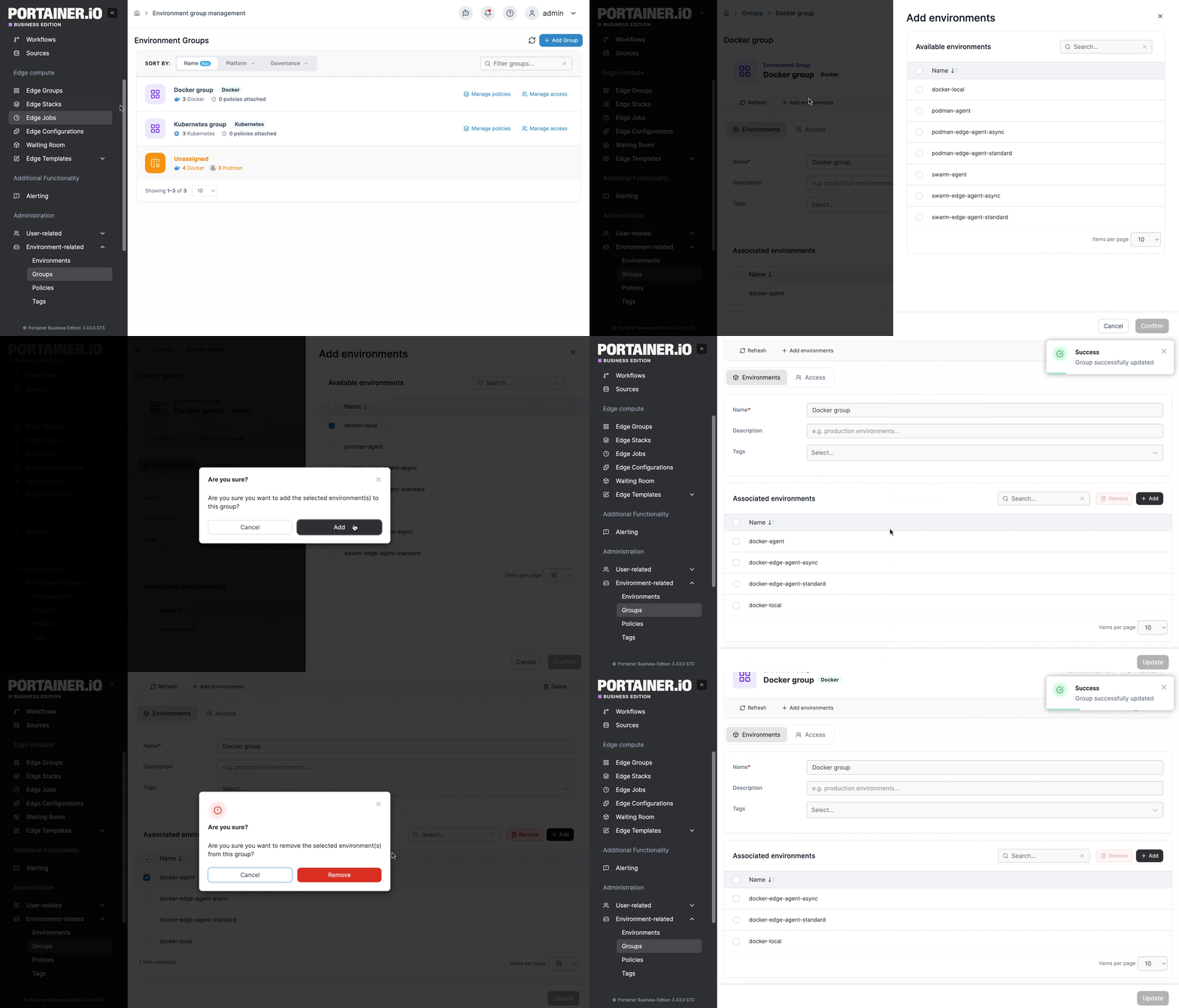
To add environments to a group, find the group in the Environment groups list and select it to open the edit view. Click Add environments, select the environments you want to add, then click Confirm.
To remove any environments from the group, select the checkbox next to the environments name in the Associated environments table, then select Remove.
Manage access to a group
To add or view access, locate the environment group you want to give users access to then select Manage access.
To add access, select the users or teams you want to add using the dropdown. Then use the Role dropdown to select the role you want this user or team to have.
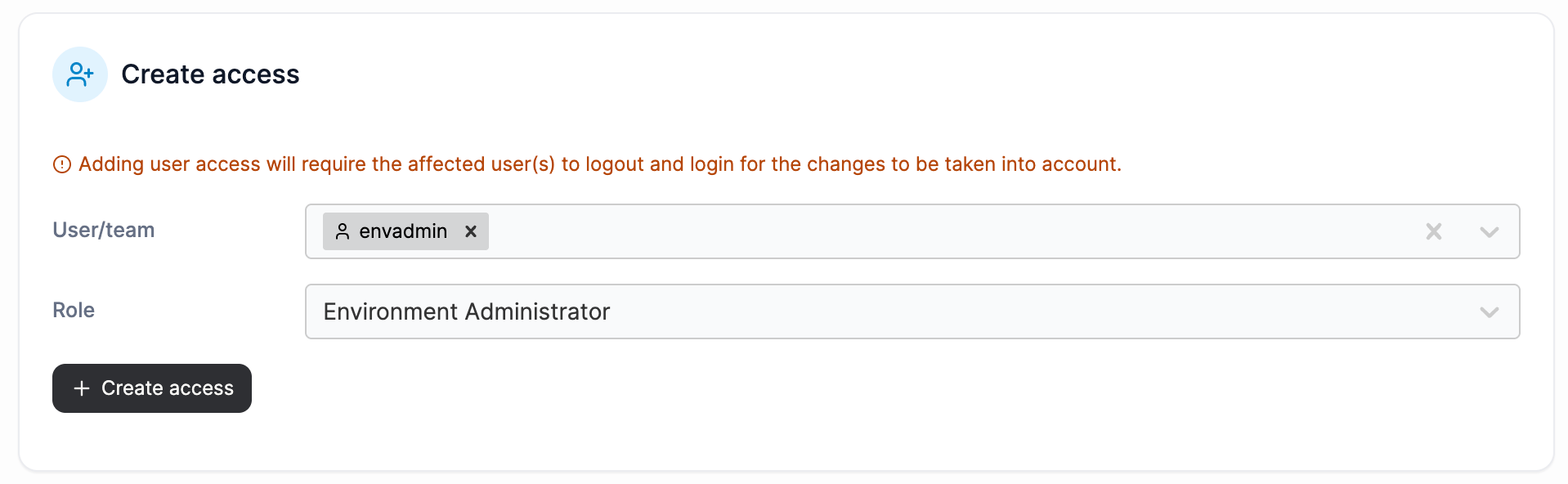
Once all have been selected, click Create access.
Delete a group
When you no longer need a group, locate the group you want to delete from the Environment groups list and select it to open the edit view, remove it by selecting Delete in the panel under the environments name.

Manage policies of a group
Policies allow you to apply configuration, security rules, and cluster settings to groups of environments, rather than configuring each environment individually.
To manage the policies of a group, in the menu expand Environment-related then select Groups. Locate the environment group you want to manage the policies for, then select Manage policies. This will direct you to the Policies page where you can manage existing polices or create new policies.

Last updated
Was this helpful?