

Install Edge Agent Standard on KubeSolo
From the menu expand Environment-related, click Environments, then click Add environment.
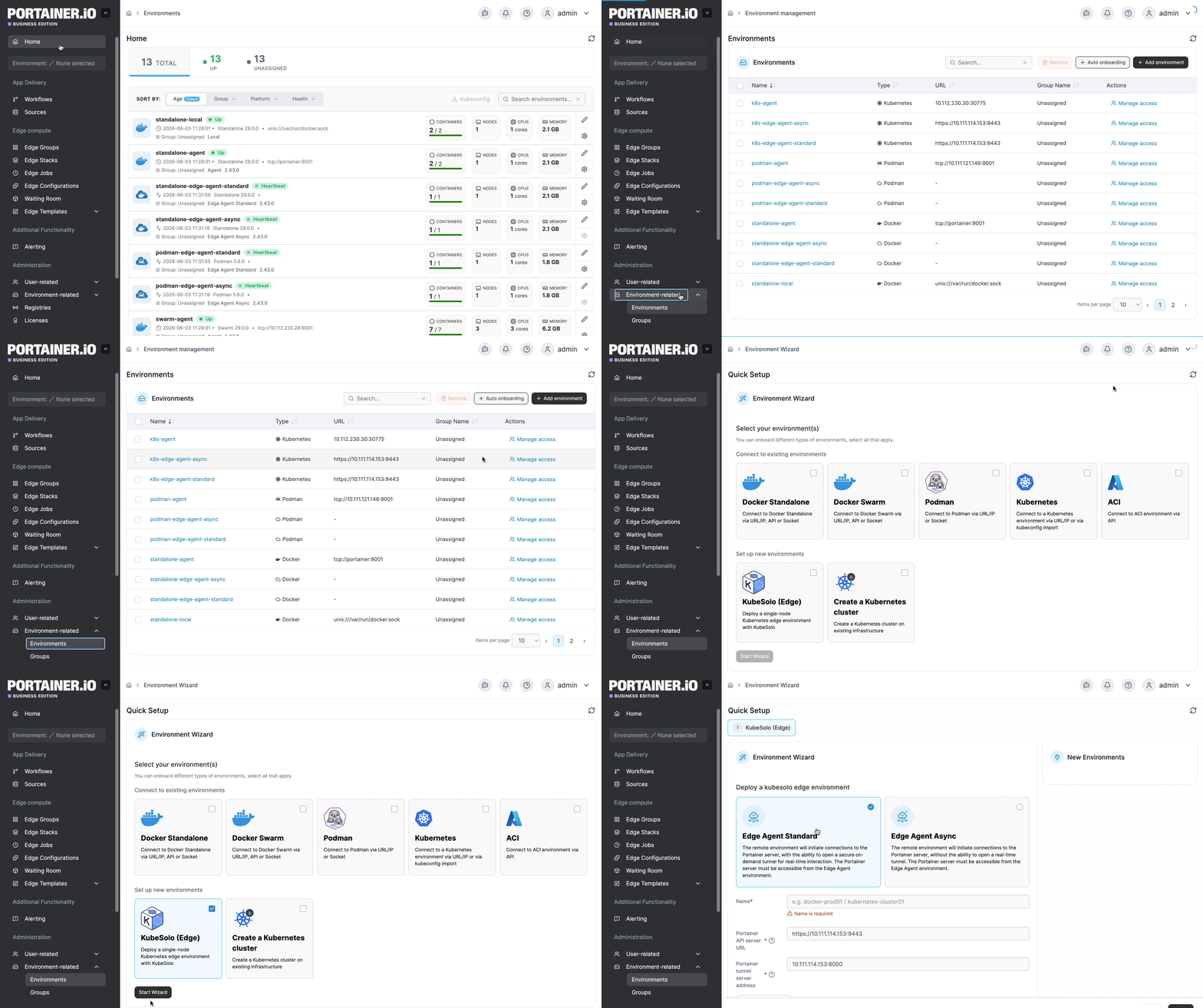
Select KubeSolo (Edge) then click Start Wizard. Then select the Edge Agent Standard option.
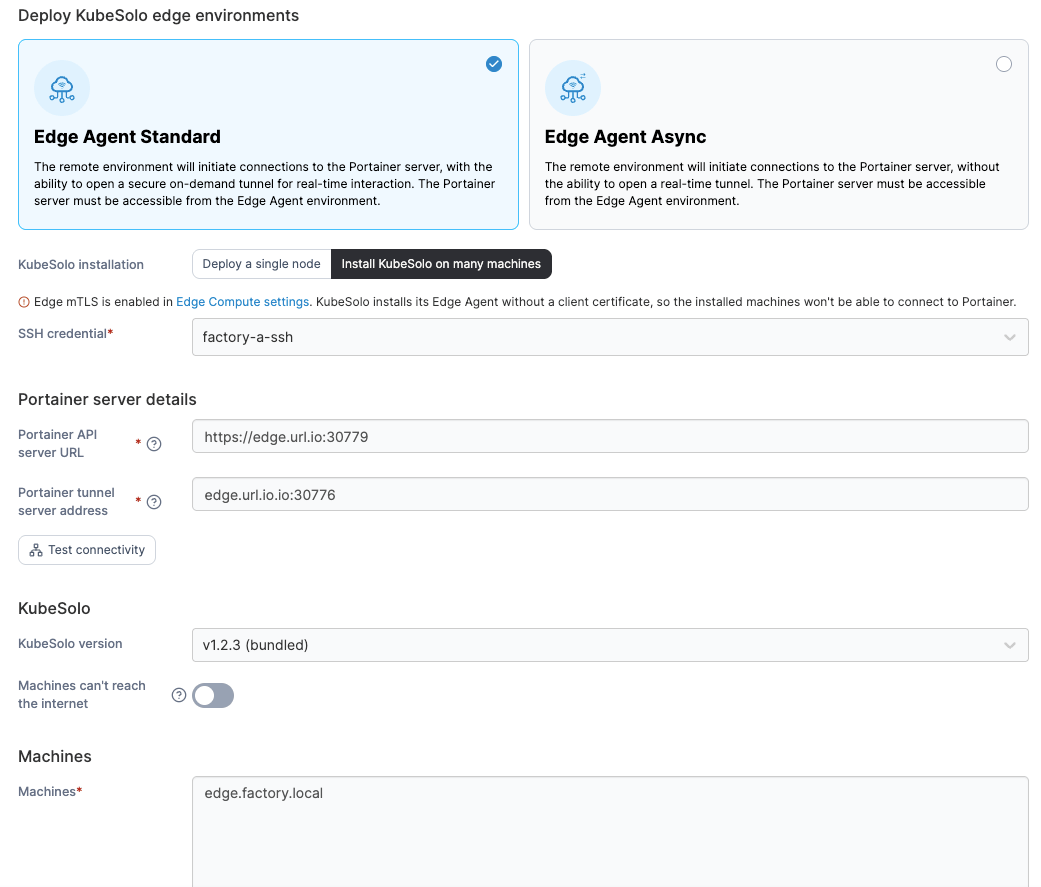
Under KubeSolo installation, choose Deploy a single node or Install KubeSolo on many machines.
Deploy on a single node
Enter the environment details using the table below as a guide.
Name
Enter a name for your environment.
Portainer API server URL
The URL of the Portainer instance that the agent will use to initiate the communications.
Portainer tunnel server address
The address of the Portainer instance that will be used by Edge agents to establish a reverse tunnel.
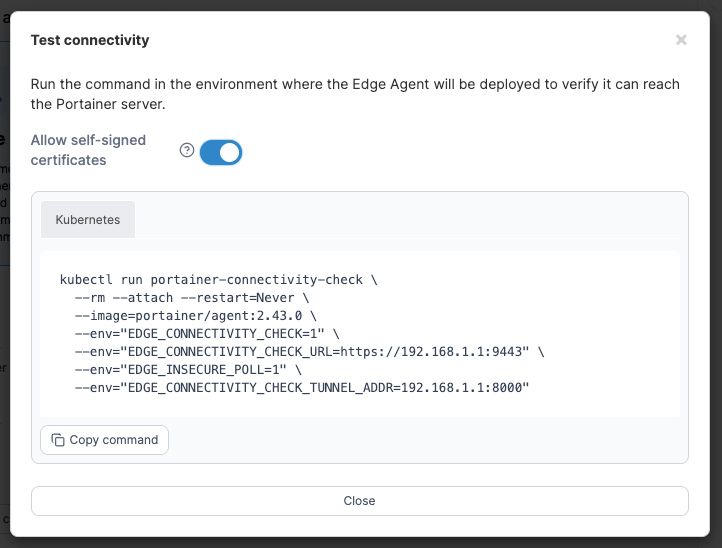
To test your input details, select Test connectivity to generate a verification command. Run this in the environment where the Edge Agent will be deployed to confirm it can reach the Portainer server. If your Portainer instance uses a self-signed or untrusted certificate, ensure you have Allow self-signed certificates selected, this will add EDGE_INSECURE_POLL=1 to the script.
As an optional step you can expand the More settings section and adjust the Poll frequency for the environment - this defines how often this Edge Agent will check the Portainer Server for new jobs. The default is every 5 seconds. You can also categorize the environment by adding it to a group or tagging it for better searchability.
When you're ready, click Create. If you are pre-staging your Edge Agent deployment, you can now retrieve the join token for use in your deployment.

Otherwise, complete the new fields that have appeared using the table below as a guide.
Environment variables
Enter a comma separated list of environment variables that will be sourced from the host where the agent is deployed and provided to the agent.
For security, the agent will only pass through environment variables with a PORTAINER_ prefix.
Allow self-signed certs
Toggle this on to allow self-signed certificates when the agent is connecting to Portainer via HTTPS.

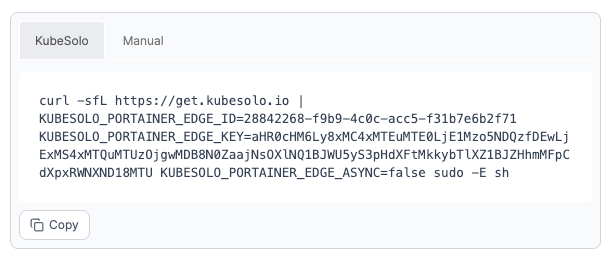
Copy the generated command and run it on your Edge environment to complete the installation. If you already have KubeSolo installed and just need to deploy the agent, use the command under the Manual tab. Otherwise, use the command under the KubeSolo tab to install KubeSolo and the agent together.
If you have another Edge standard environment of the same type to deploy you can click Add another environment to do so. Otherwise if you have any other environments to configure click Continue to proceed, or click Close to return to the list of environments.
Install KubeSolo on many machines
Instead of running the command above by hand on each machine, select Install KubeSolo on many machines under KubeSolo installation to let Portainer install it over SSH on as many machines as you list, each becoming its own environment automatically. This requires a shared SSH credential for a user with sudo privileges on the target machines. Fill in the details using below as a guide:
SSH credential
A shared SSH credential, or select Add credential to create one without leaving the wizard.
Portainer API server URL
The URL of the Portainer instance that the agent will use to initiate communications.
Portainer tunnel server address
The address of the Portainer instance that Edge agents will use to establish a reverse tunnel.
KubeSolo version
Defaults to the bundled version. For machines without internet access, enable Machines can't reach the internet and upload a matching offline bundle per architecture.
Machines
One per line: an IP/hostname with an optional :port, an IPv4 range, or a CIDR block. No username - it comes from the SSH credential. Up to 500 machines per test.
Select Test connections to check SSH and sudo access, host key, architecture, and reachability on every machine in parallel. View details shows the results grouped by failure cause, each with a suggested fix and a Re-test failed machines button; starting a new test clears the old one.
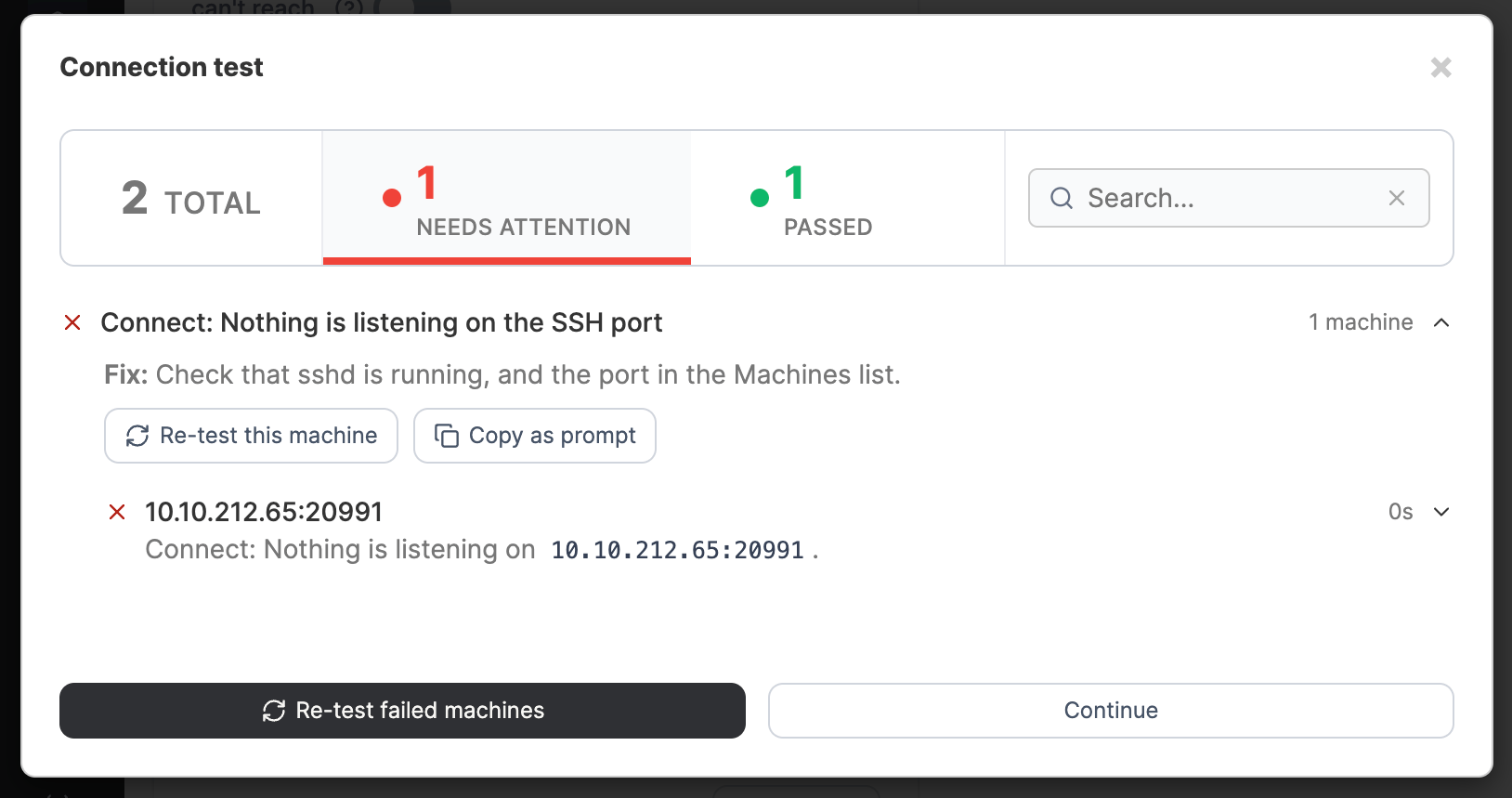
Once at least one machine has passed, select Install N passed to install KubeSolo and create an environment for each, named after its hostname. Changing the credential, server details, version, or offline setting after testing means testing again before installing.
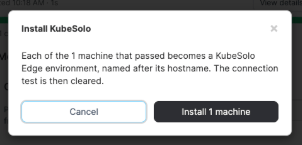
While installing, an environment shows Provisioning with a Cancel action; a failed install shows Error with Retry. Administrators also see a banner on the Environments list while a test is running or has unreviewed results.
Was this helpful?