> For the complete documentation index, see [llms.txt](https://docs.portainer.io/llms.txt). Markdown versions of documentation pages are available by appending `.md` to page URLs; this page is available as [Markdown](https://docs.portainer.io/portainer-documentation/sts/admin/environments/add/add-a-kubesolo-edge-environment/install-edge-agent-async-on-kubesolo.md).
# Install Edge Agent Async on KubeSolo
{% hint style="info" %}
For a technical summary of how the Edge Agent works, refer to our [advanced documentation](/portainer-documentation/sts/advanced/edge-agent.md).
{% endhint %}
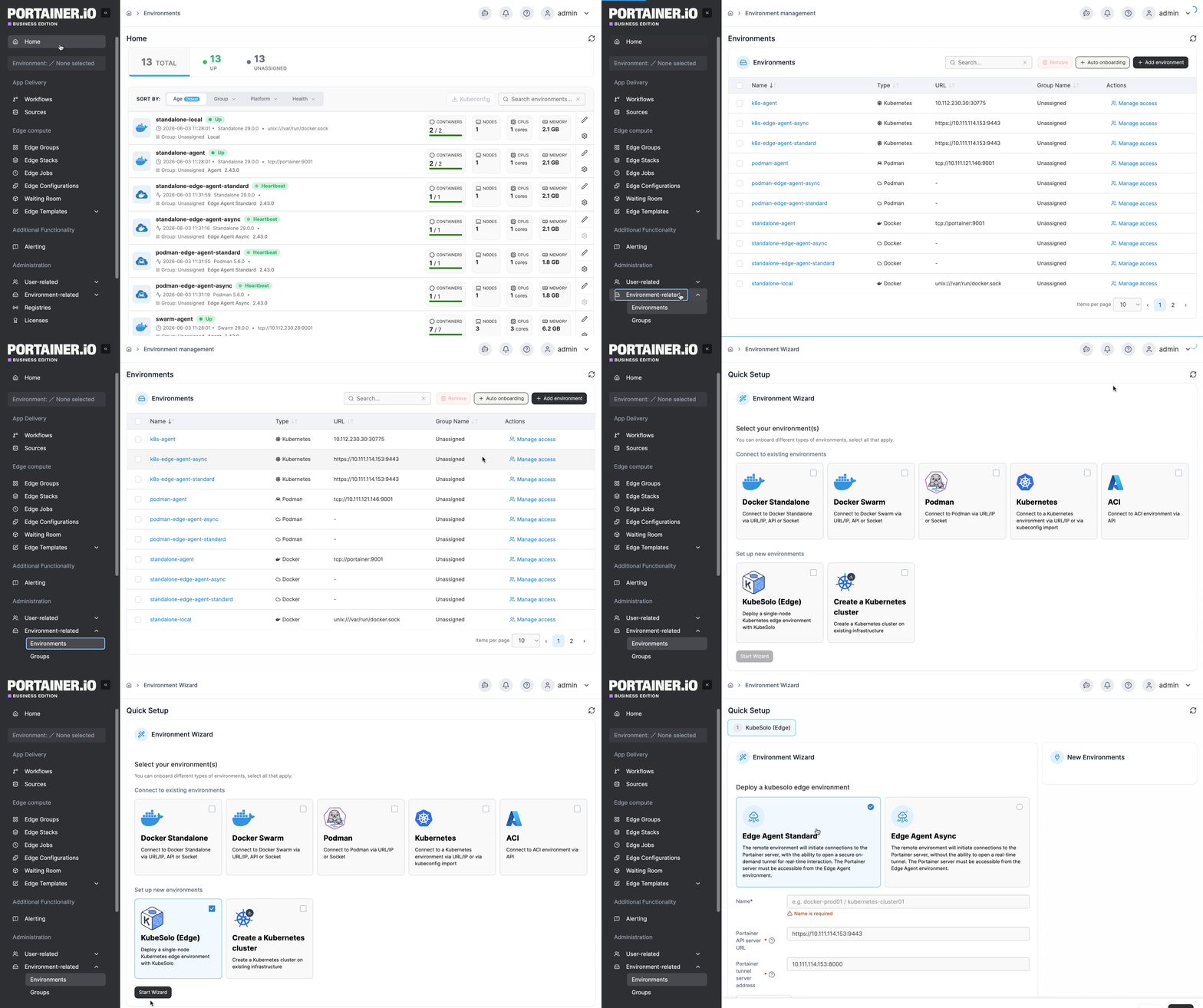
From the menu expand **Environment-related**, click **Environments**, then click **Add environment**.
Select **KubeSolo (Edge)** then click **Start Wizard**. Then select the **Edge Agent Async** option.
Under **KubeSolo installation**, choose [**Deploy a single node**](#deploy-a-single-node) or [**Install KubeSolo on many machines**](#install-kubesolo-on-many-machines)**.**
### Deploy a single node
Enter the environment details using the table below as a guide.
| Field | Overview |
| ------------------------ | ----------------------------------------------------------------------------------------- |
| Name | Enter a name for your environment. |
| Portainer API server URL | The URL of the Portainer instance that the agent will use to initiate the communications. |
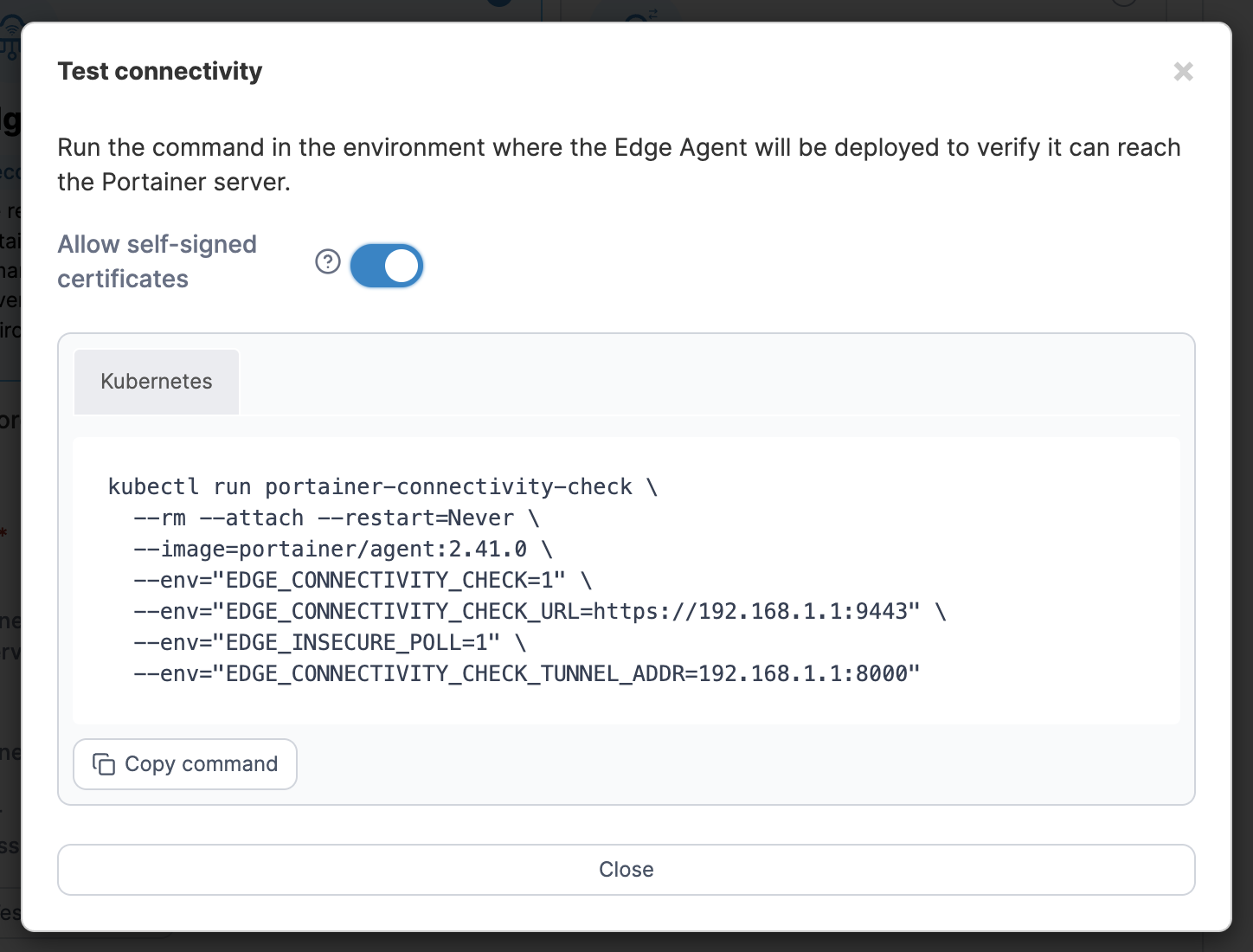
To test your input details, select **Test connectivity** to generate a verification command. Run this in the environment where the Edge Agent will be deployed to confirm it can reach the Portainer server. If your Portainer instance uses a self-signed or untrusted certificate, ensure you have **Allow self-signed certificates** selected, this will add `EDGE_INSECURE_POLL=1` to the script.
As an optional step you can expand the **More settings** section and adjust the **Ping**, **Snapshot** and **Command** intervals for the environment - this defines how often this Edge Agent will check in with the Portainer Server for status updates, snapshot updates and to see if there are new pending commands to run, respectively. The default for each is once a minute, but the defaults can be adjusted in the [Edge Compute settings](/portainer-documentation/sts/admin/settings/edge.md#async-check-in-intervals).
You can also categorize the environment by adding it to a [group](/portainer-documentation/sts/admin/environments/groups.md) or [tagging](/portainer-documentation/sts/admin/environments/tags.md) it for better searchability.
When you're ready, click **Create**. If you are pre-staging your Edge Agent deployment, you can now retrieve the join token for use in your deployment.
Otherwise, complete the new fields that have appeared using the table below as a guide.
| Field/Option | Overview |
| ----------------------- | ---------------------------------------------------------------------------------------------------------------------------------------------------------------------------------------------------------------------------------------------------------------------- |
| Environment variables |
Enter a comma separated list of environment variables that will be sourced from the host where the agent is deployed and provided to the agent. For security, the agent will only pass through environment variables with a PORTAINER\_ prefix.
|
| Allow self-signed certs | Toggle this on to allow self-signed certificates when the agent is connecting to Portainer via HTTPS. |
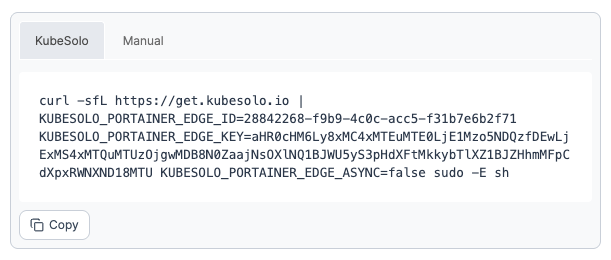
Copy the generated command and run it on your Edge environment to complete the installation. If you already have KubeSolo installed and just need to deploy the agent, use the command under the **Manual** tab. Otherwise, use the command under the **KubeSolo** tab to install KubeSolo and the agent together.
{% hint style="warning" %}
If you have set a custom `AGENT_SECRET` on your Portainer Server instance (by specifying an AGENT\_SECRET environment variable when starting the Portainer Server container) you **must** remember to explicitly provide the same secret to your Edge Agent in the same way (as an environment variable) when deploying your Edge Agent, within the agent deployment definition:
`env:`\
`- name: AGENT_SECRET`\
`value: yoursecret`
{% endhint %}
If you have another Edge standard environment of the same type to deploy you can click **Add another environment** to do so. Otherwise if you have any other environments to configure click **Continue** to proceed, or click **Close** to return to the list of environments.
### Install KubeSolo on many machines
Instead of running the command above by hand on each machine, select **Install KubeSolo on many machines** under **KubeSolo installation** to let Portainer install it over SSH on as many machines as you list, each becoming its own environment automatically. This requires a [shared SSH credential](/portainer-documentation/sts/admin/settings/credentials/ssh.md) for a user with sudo privileges on the target machines. Fill in the details using below as a guide:
| Field/Option | Overview |
| ------------------------ | -------------------------------------------------------------------------------------------------------------------------------------------------------------------------- |
| SSH credential | A shared SSH credential, or select **Add credential** to create one without leaving the wizard. |
| Portainer API server URL | The URL of the Portainer instance that the agent will use to initiate communications. |
| KubeSolo version | Defaults to the bundled version. For machines without internet access, enable **Machines can't reach the internet** and upload a matching offline bundle per architecture. |
| Machines | One per line: an IP/hostname with an optional `:port`, an IPv4 range, or a CIDR block. No username - it comes from the SSH credential. Up to 500 machines per test. |
{% hint style="warning" %}
If **Use separate mTLS cert** is enabled in [Edge settings](/portainer-documentation/sts/admin/settings/edge.md), the installed machines won't be able to connect to Portainer - turn it off first, or install manually instead.
{% endhint %}
Select **Test connections** to check SSH and sudo access, host key, architecture, and reachability on every machine in parallel. **View details** shows the results grouped by failure cause, each with a suggested fix and a **Re-test failed machines** button; starting a new test clears the old one.
Once at least one machine has passed, select **Install N passed** to install KubeSolo and create an environment for each, named after its hostname. Changing the credential, server details, version, or offline setting after testing means testing again before installing.
While installing, an environment shows **Provisioning** with a **Cancel** action; a failed install shows **Error** with **Retry**. Administrators also see a banner on the Environments list while a test is running or has unreviewed results.