> For the complete documentation index, see [llms.txt](https://docs.portainer.io/llms.txt). Markdown versions of documentation pages are available by appending `.md` to page URLs; this page is available as [Markdown](https://docs.portainer.io/portainer-documentation/sts/admin/add-ons/installing-an-add-on.md).
# Installing an add-on
{% hint style="info" %}
Before you install an add-on, check out the [add-on installation requirements](https://docs.portainer.io/portainer-documentation/sts/faqs/getting-started/add-on-requirements.md).
{% endhint %}
To install an add-on, navigate to **Add-ons** under Administration in the menu and click **Install** on the application you would like to install.
Add-on configuration varies by application. Refer to that application's documentation, linked in the [add-ons catalog](https://docs.portainer.io/portainer-documentation/sts/admin/add-ons.md#add-ons-catalog), for help with installation.
#### Configuration
| Field/Option | Overview |
| -------------------- | ----------------------------------------------------------------------------------------------------------------------------------------------------------------------------------------------------------------------------------------------------------------------------------------------------------------------------------------------------------------------------------------------- |
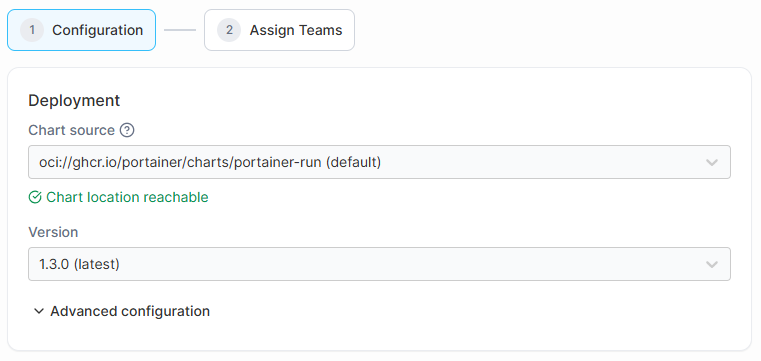
| Chart source | A read-only field that shows the OCI Helm chart reference used to install this add-on. |
| Version | Select which chart version to install, from the versions your Portainer can run. The most recent compatible version is marked "(latest)" and selected by default. If no published version is compatible, installation is blocked and Portainer tells you to upgrade. |
| Add-on configuration |
Appears once a version is selected. Contains the connection and configuration fields defined by the chart's values. The fields vary between add-ons - each one is generated from the chart's own schema.
Fields whose name includes key, token, secret, or password are masked by default - click the eye icon to reveal them.
|
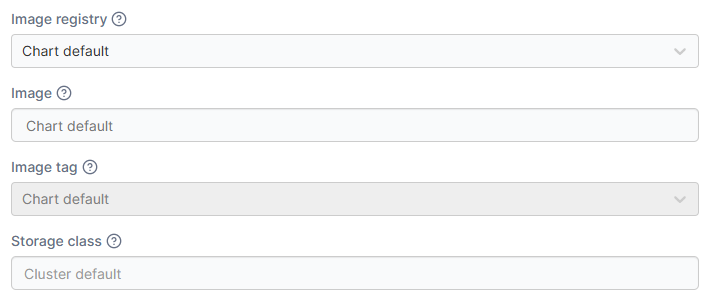
You can click Advanced configuration to further customize your deployment from the default values:
| Field/Option | Overview |
| -------------- | ------------------------------------------------------------------------------------------------------------------------------------------------------------------------------------------- |
| Image registry | Specify the registry that contains the add-on's container image. Its credentials are also what the add-on's pod pull with. |
| Image | Specify the image to use. Start typing in this field to search the registry's images. You can also manually enter a path here if the search does not give the option you are searching for. |
| Image tag | Specify the image tag to use. |
| Storage class | Specify the StorageClass to use for the add-on's volume. If not set, the cluster's default StorageClass will be used. |
Click **Next** when you have completed the initial configuration.
#### Assign teams
| Field/Option | Overview |
| ----------------------------- | ---------------------------------------------------------------------------------------------------------------------------------------------------------------------------------------------------------------------------------------------------- |
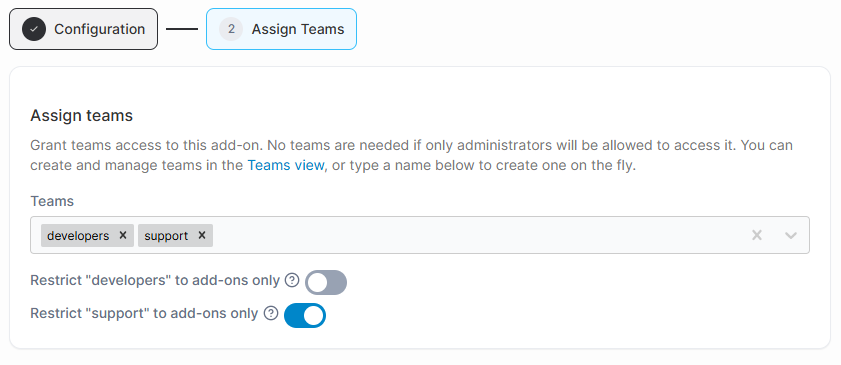
| Teams | Optionally select which Portainer teams can access this add-on. You can also type a new team name here to create one. |
| Restrict team to add-ons only | When enabled, members of the team are redirected directly into the add-on and cannot access the main Portainer UI. This makes the add-on their primary interface. If you have chosen multiple teams above, a toggle will be displayed for each team. |
Once you have complete both steps and click **Finish** to deploy the add-on.