> For the complete documentation index, see [llms.txt](https://docs.portainer.io/llms.txt). Markdown versions of documentation pages are available by appending `.md` to page URLs; this page is available as [Markdown](https://docs.portainer.io/portainer-documentation/3.0-sts/user/docker/templates/deploy-container.md).
# Deploy a container
Portainer lets you deploy a standalone container from the default templates list.
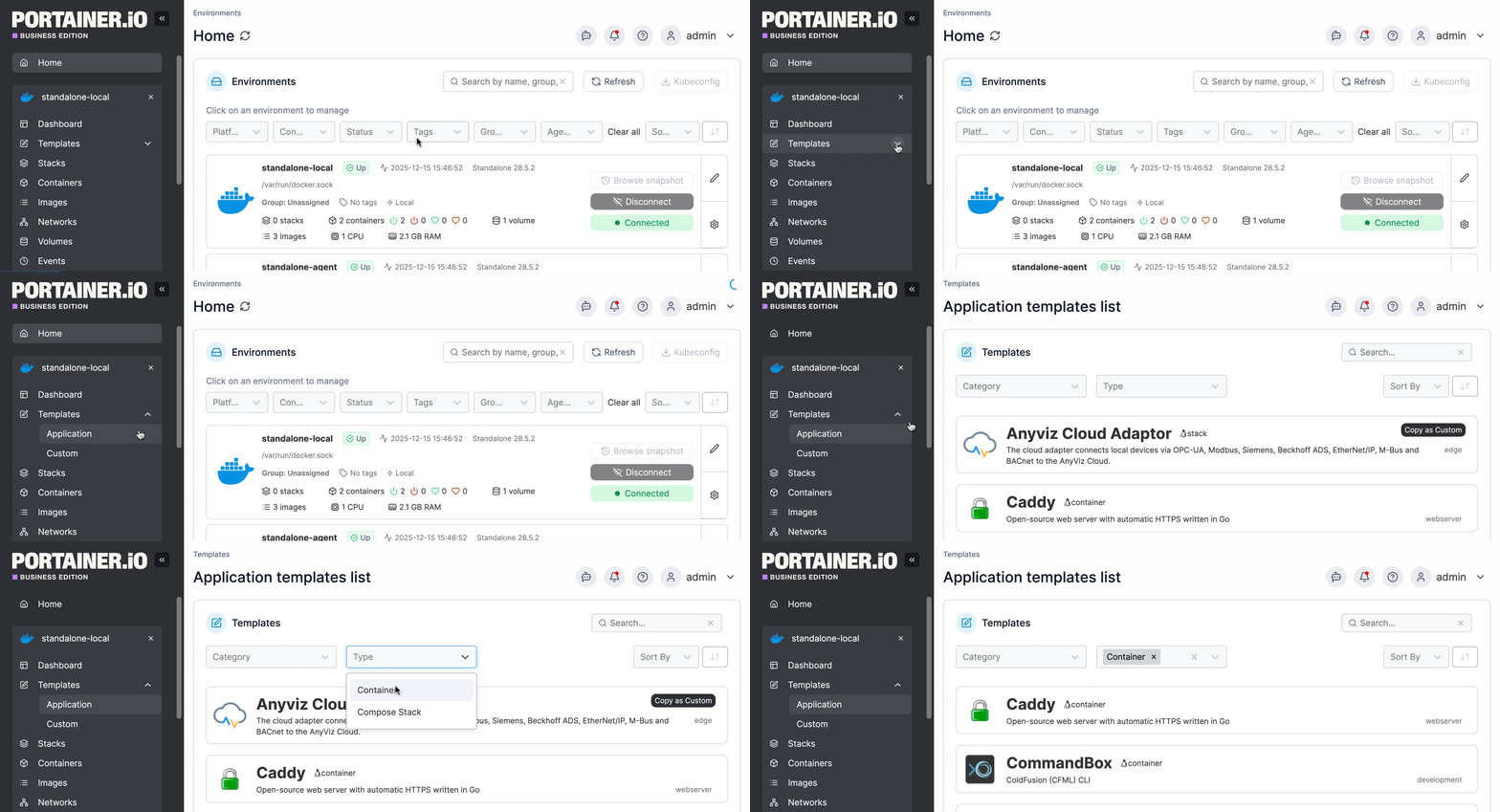
From the menu expand **Templates** then select **Application** or **Custom** (depending on the container). On the Application templates page you can choose to display only Container templates using the **Type** dropdown.
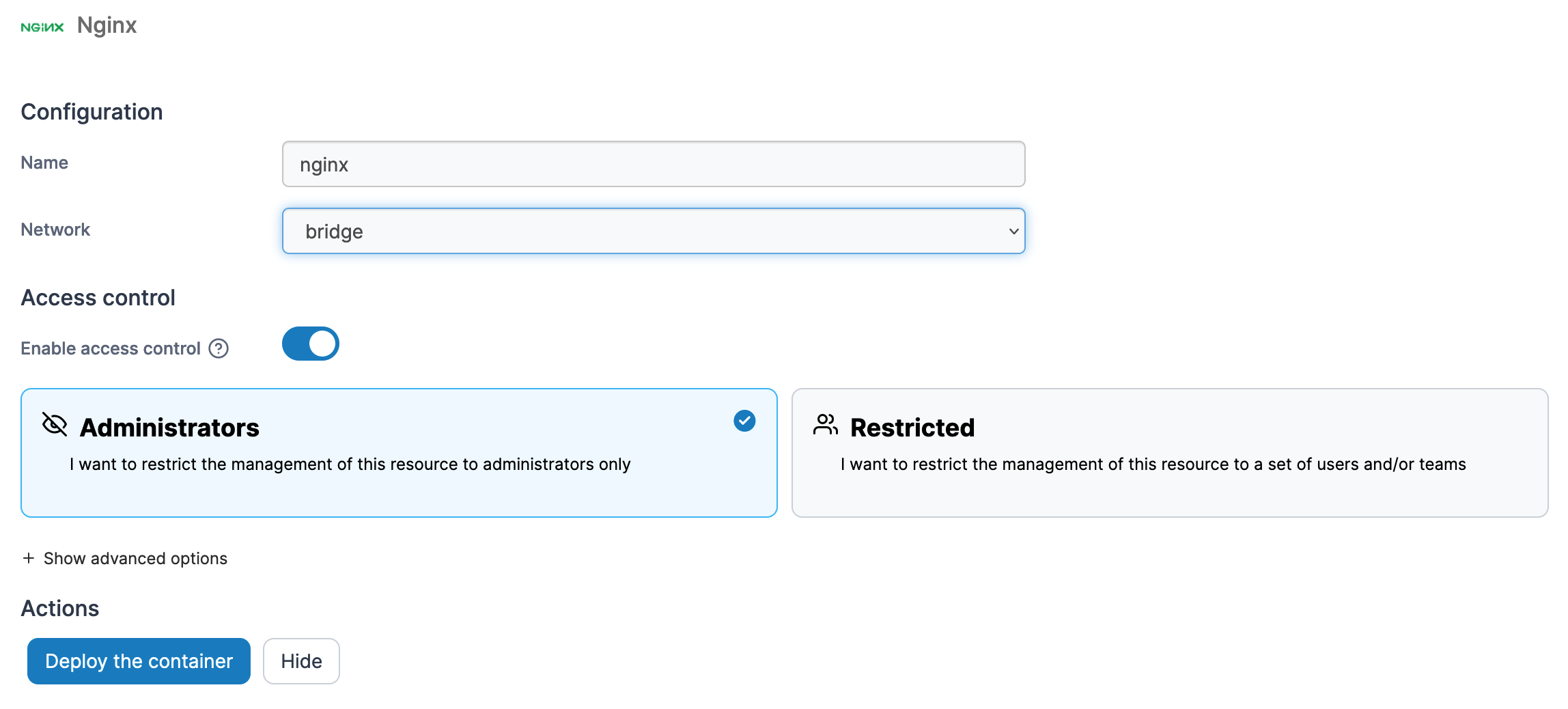
Then, select the container template you want to deploy. Define a name, a network, port mapping and volumes, and toggle **Enable access control** on if needed.
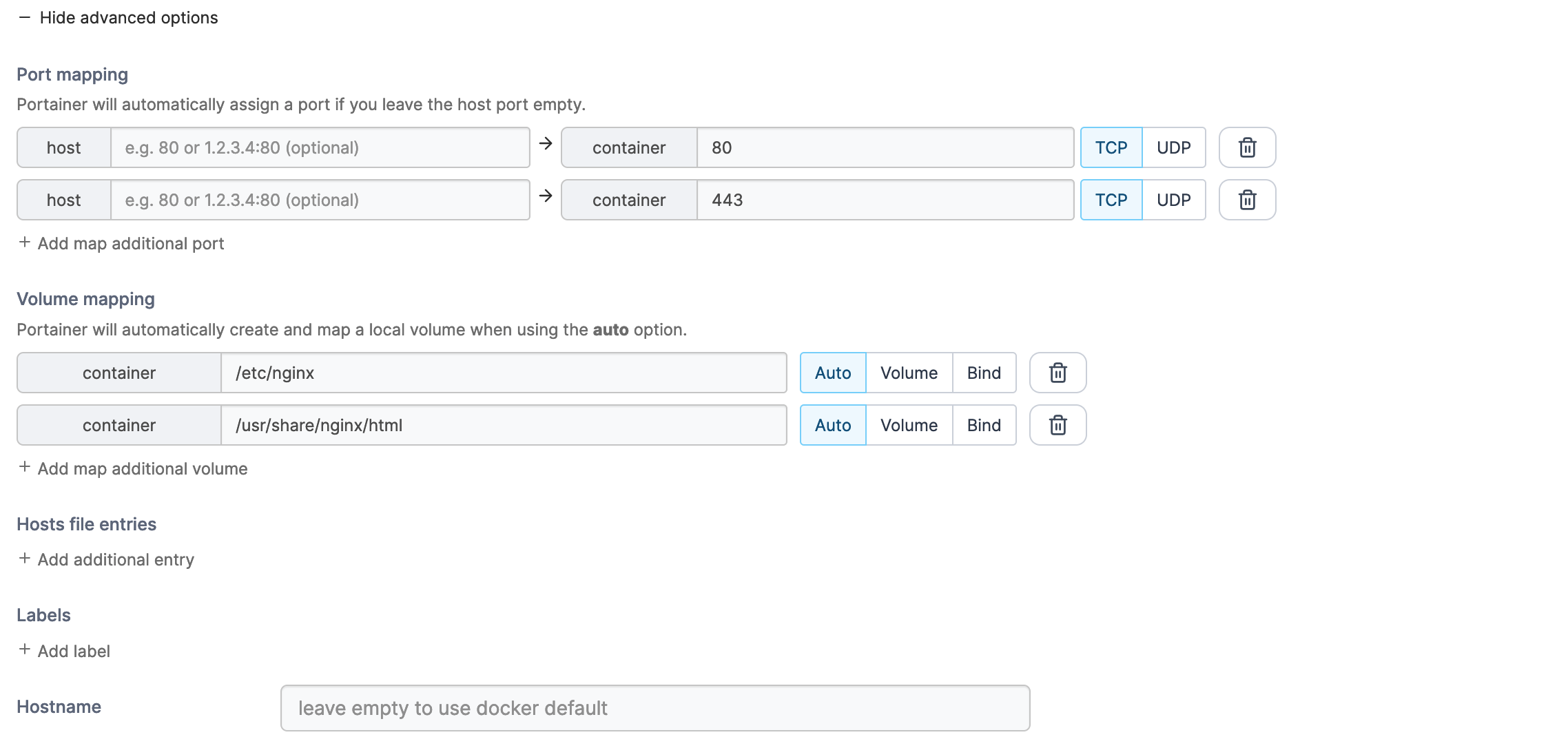
You can also make changes to container settings such as port and volume mapping, host file entries, labels and the hostname by clicking **Show advanced options**.
Once you have configured the container, click **Deploy the container**.