> For the complete documentation index, see [llms.txt](https://docs.portainer.io/llms.txt). Markdown versions of documentation pages are available by appending `.md` to page URLs; this page is available as [Markdown](https://docs.portainer.io/2.39-lts/user/docker/templates/deploy-stack.md).
# Deploy a stack
Portainer lets you deploy an entire stack from either a default template or a custom template.
{% hint style="info" %}
You can also [create a template from a stack](/2.39-lts/user/docker/stacks/template.md).
{% endhint %}
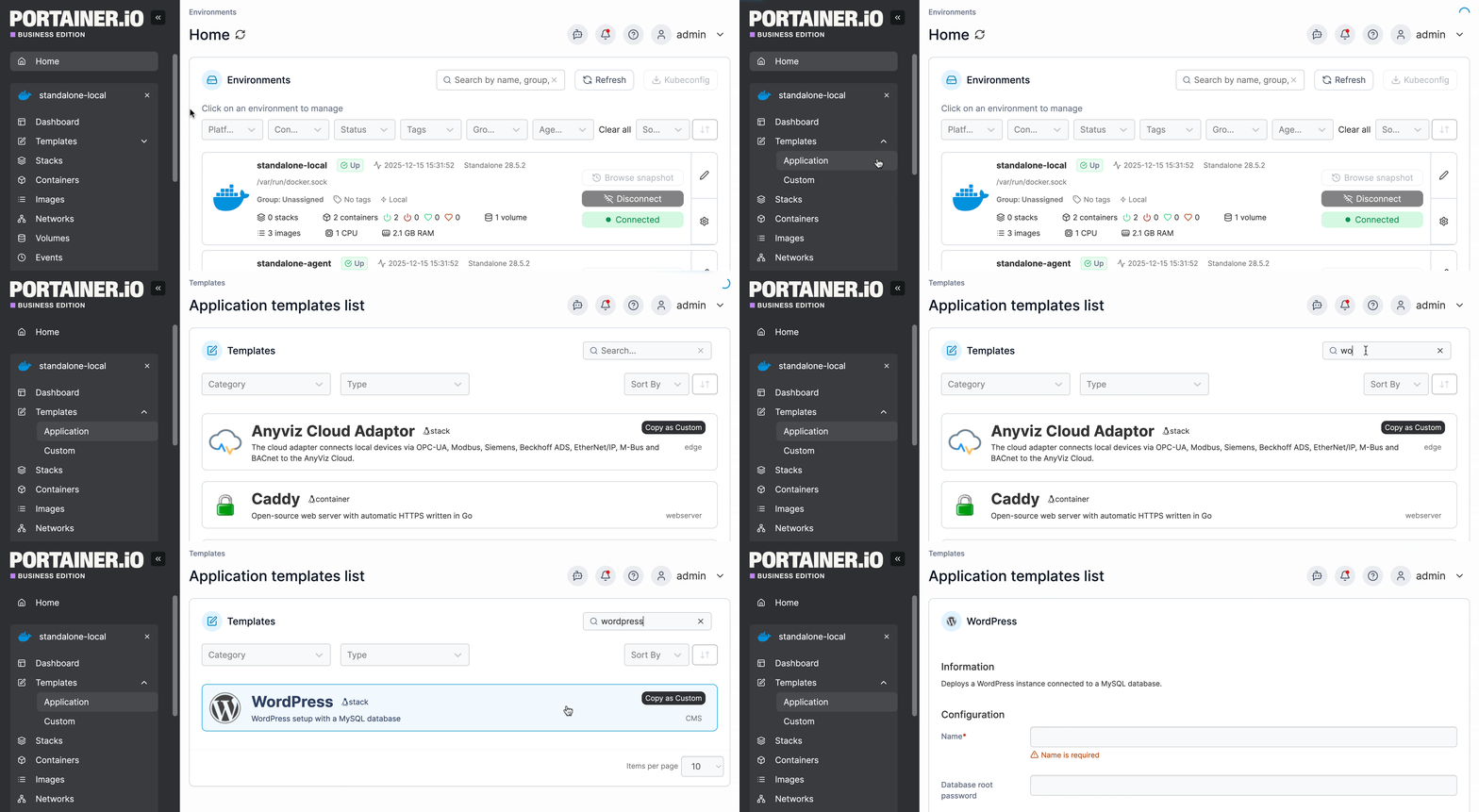
From the menu expand **Templates**, select **Application** or **Custom** (depending on the template) then select the template you want to deploy. In this example we'll create a WordPress stack.
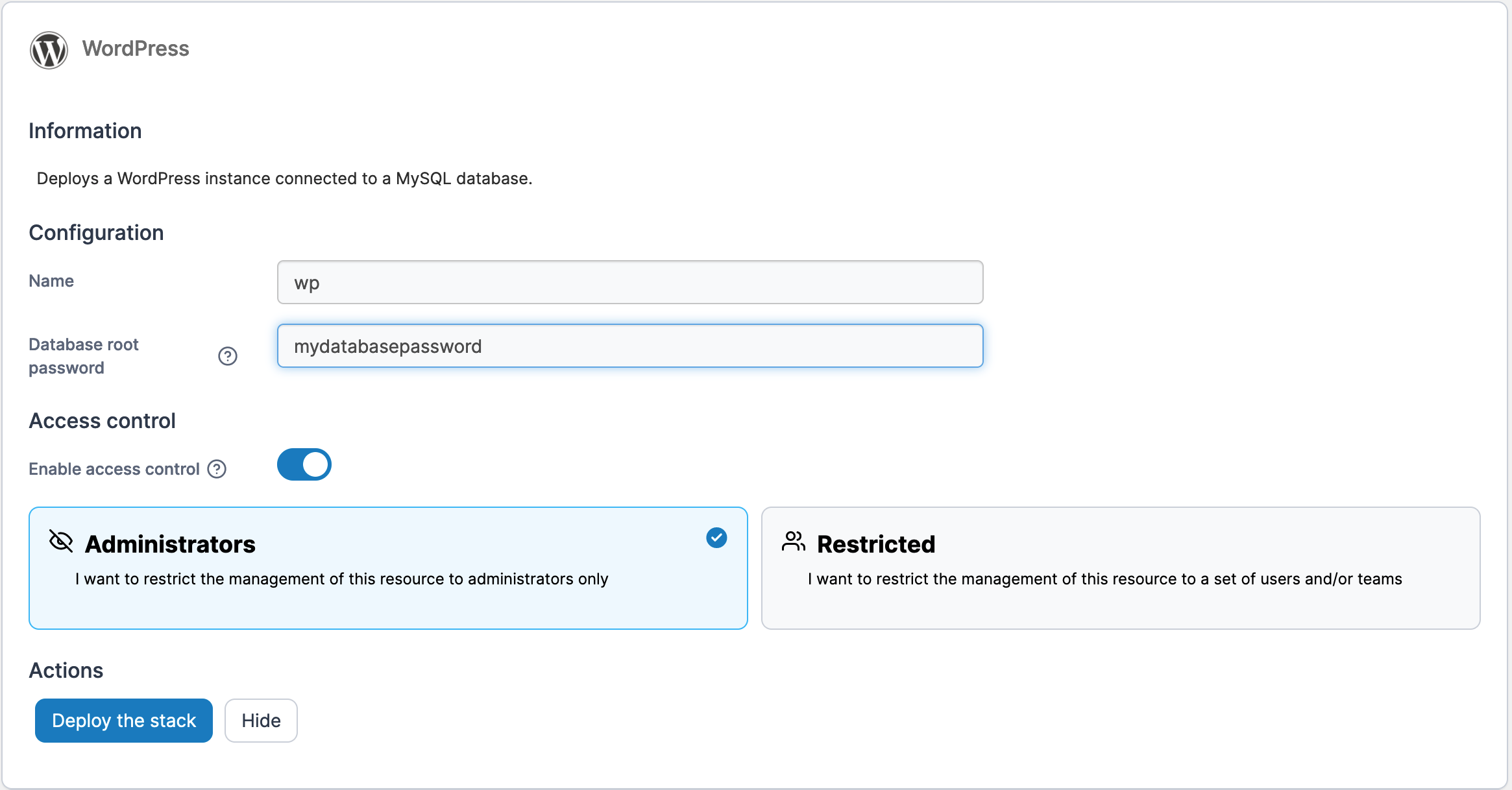
Enter a name for the stack and set any required configuration values (these will differ from template to template). Toggle **Enable access control** on or off as required.
Click **Deploy the stack** then wait for the deployment to finish. If the deployment is successful, the new stack will appear in the list. Select it to view the [deployment details](/2.39-lts/user/docker/stacks/edit.md).