> For the complete documentation index, see [llms.txt](https://docs.portainer.io/llms.txt). Markdown versions of documentation pages are available by appending `.md` to page URLs; this page is available as [Markdown](https://docs.portainer.io/2.39-lts/user/docker/containers/attach-volume.md).
# Attach a volume to a container
{% hint style="danger" %}
This article explains how to attach a new [volume](/2.39-lts/user/docker/volumes.md) to a running container. This operation destroys the running container and starts a new one with the volume attached.
**Always back up your data before running this operation.**
{% endhint %}
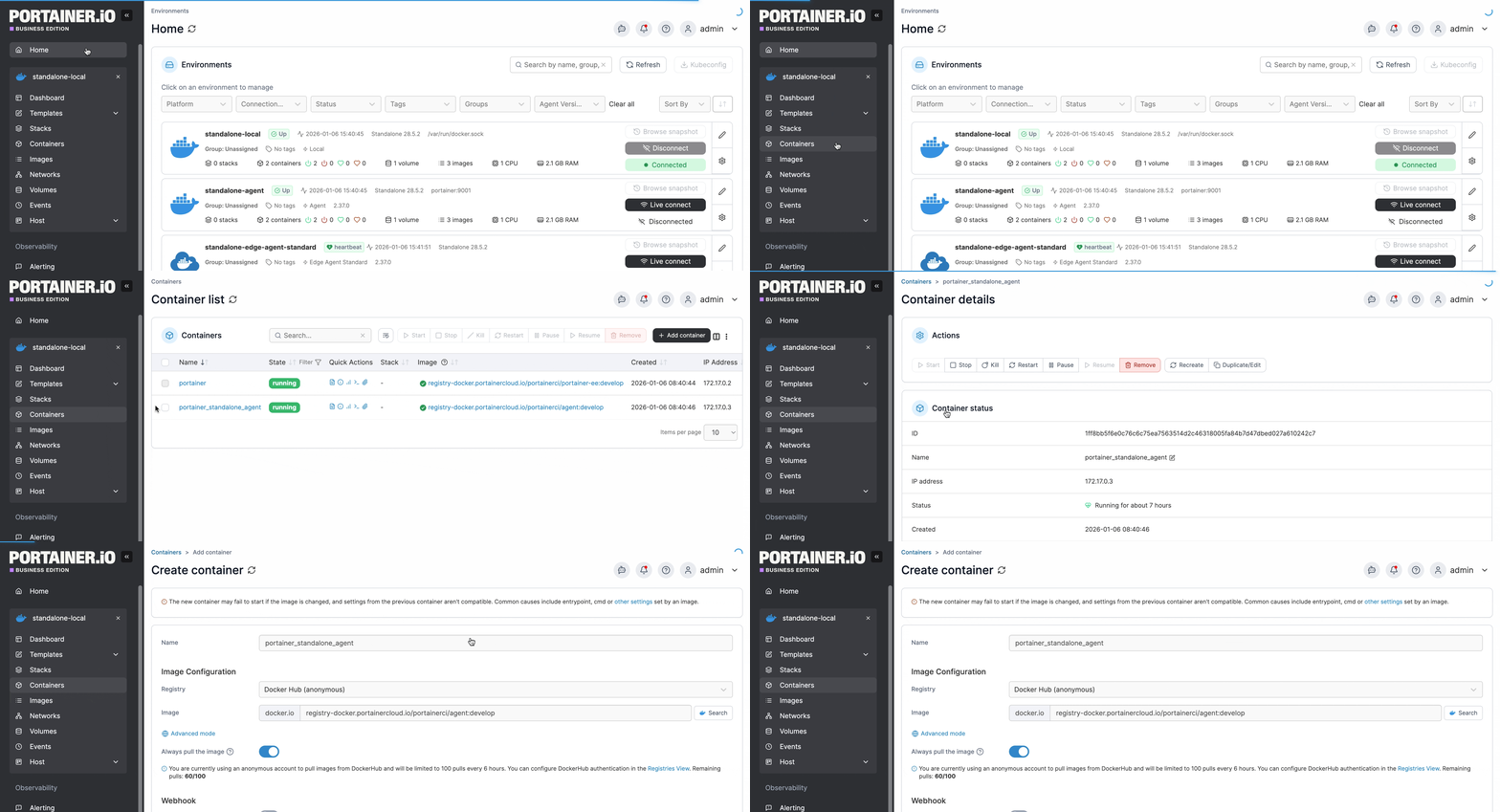
From the menu select **Containers**, select the container that you want to attach a volume to, then click **Duplicate/Edit**.
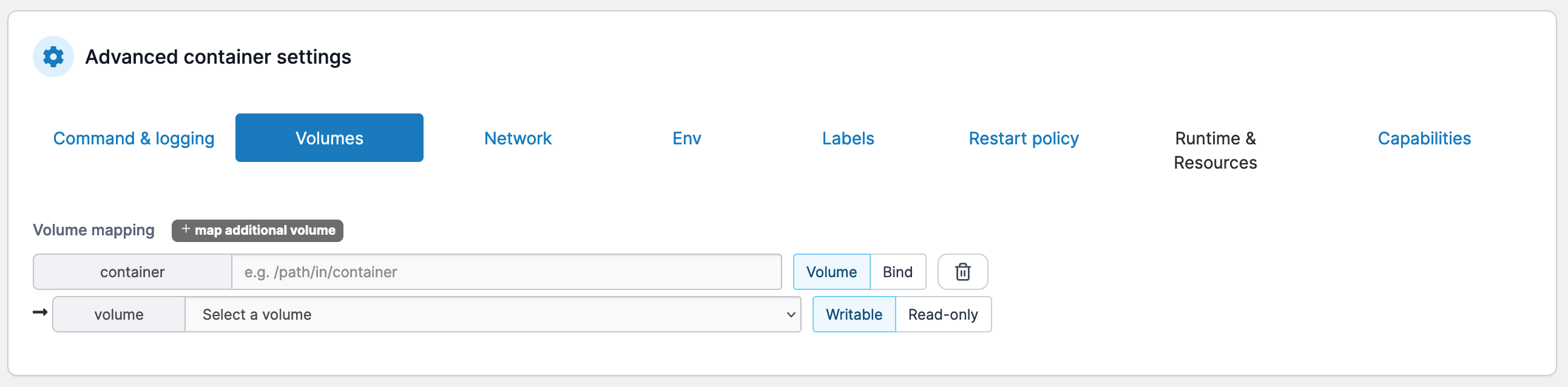
Scroll down to **Advanced container settings**. Click **Volumes** then click **map additional volume**.
In the **container** field enter the path. In the **volume** field enter the volume to attach to the container.
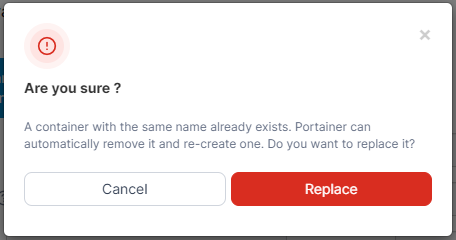
When you're ready, click **Deploy the container**. When the confirmation message appears, click **Replace**.