# Build a new image

There are three ways you can build new images.

{% hint style="info" %}
On a multi-node environment, the built image will only be available on the node you select in the **Deployment** section. To make the image available to all nodes, consider [adding a registry](https://docs.portainer.io/2.33-lts/admin/registries/add) to Portainer.
{% endhint %}

{% hint style="warning" %}
When building an image with Portainer, you are unable to use `ADD` or `COPY` commands referencing files on the host. We recommend using `wget` or similar to retrieve files from a HTTP/S URL instead.
{% endhint %}

## Method 1: Using the Portainer web editor

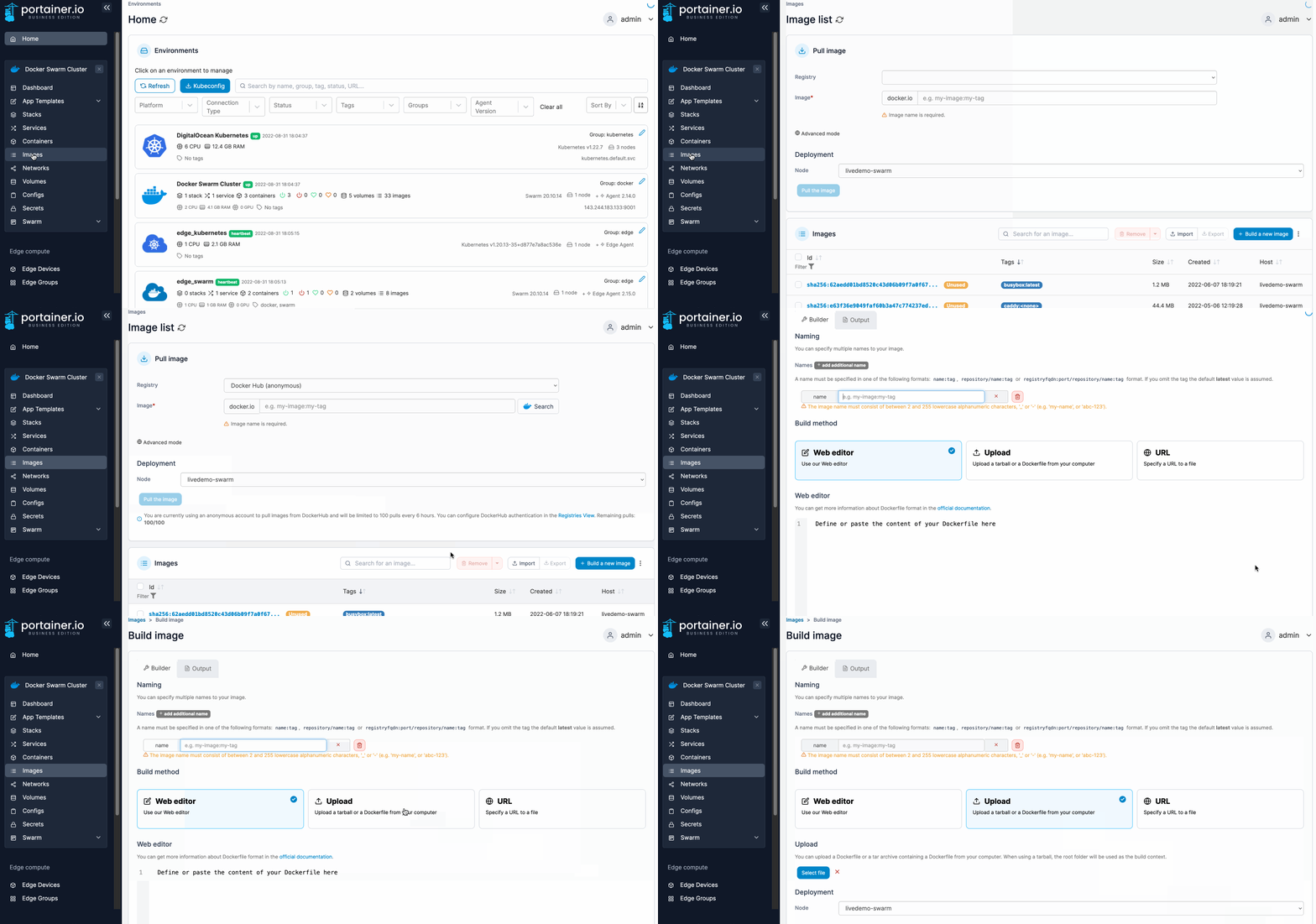
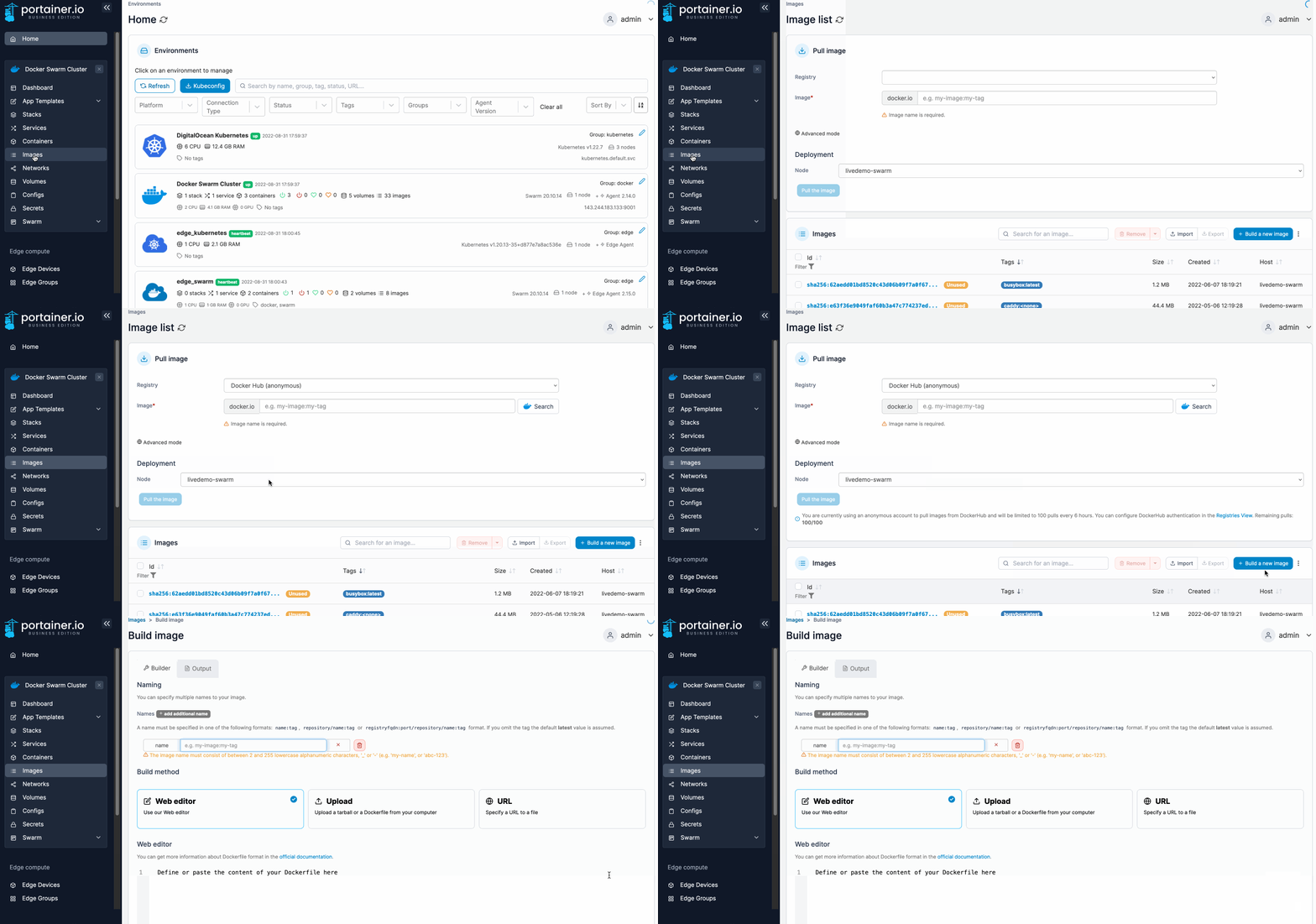
From the menu select **Images** then click **Build a new image**.

<figure><img src="https://3850702872-files.gitbook.io/~/files/v0/b/gitbook-x-prod.appspot.com/o/spaces%2FXI7douejaBgpZ6CP2zJf%2Fuploads%2Fgit-blob-d003f1c1f0a4c2f203eb186eb4af4c2ec086bc53%2F2.15-docker_images_build_image.gif?alt=media" alt=""><figcaption></figcaption></figure>

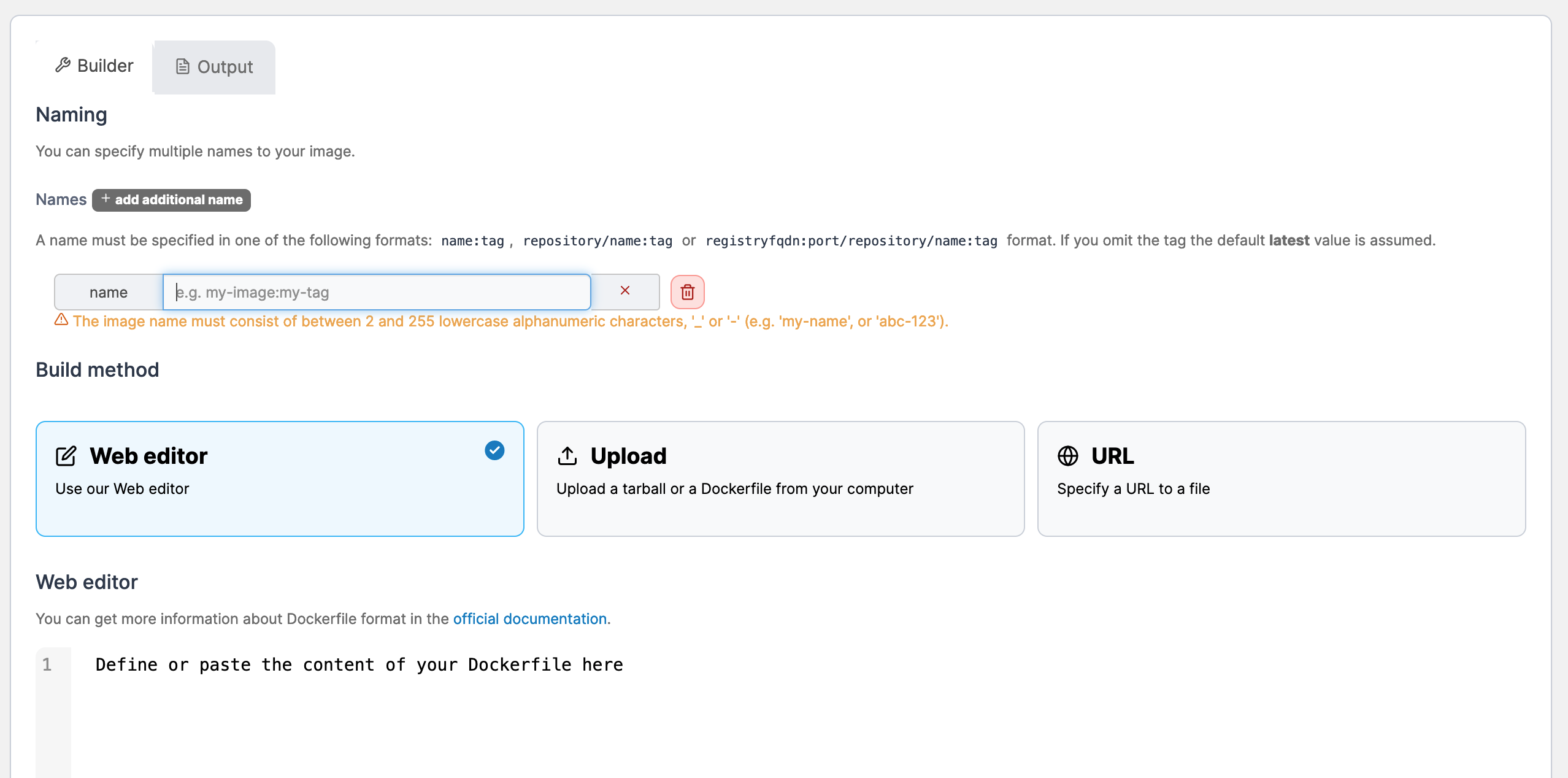
Next, give the image a descriptive name (you can enter multiple names), select the **Web editor** option under **Build method**, then write your Dockerfile in the web editor.

{% hint style="info" %}
You can search within the web editor at any time by pressing `Ctrl-F` (or `Cmd-F` on Mac).
{% endhint %}

<figure><img src="https://3850702872-files.gitbook.io/~/files/v0/b/gitbook-x-prod.appspot.com/o/spaces%2FXI7douejaBgpZ6CP2zJf%2Fuploads%2Fgit-blob-68d82640886ad1fa5ae00bb9fb3e33f5a026b178%2F2.15-docker_images_build_web_editor.png?alt=media" alt=""><figcaption></figcaption></figure>

Optionally, you can upload one or more local files to be included in an image by clicking **Select files** and selecting the files to include. You can then reference them in your Dockerfile.

<figure><img src="https://3850702872-files.gitbook.io/~/files/v0/b/gitbook-x-prod.appspot.com/o/spaces%2FXI7douejaBgpZ6CP2zJf%2Fuploads%2Fgit-blob-776d3b1744c090493c787fe7c084fe898fa255db%2F2.16-images-build-upload.png?alt=media" alt=""><figcaption></figcaption></figure>

Select the node you want to save the image on (if on a multi-node environment) then click **Build the image**.

<figure><img src="https://3850702872-files.gitbook.io/~/files/v0/b/gitbook-x-prod.appspot.com/o/spaces%2FXI7douejaBgpZ6CP2zJf%2Fuploads%2Fgit-blob-9c88c31f1683ba63a599a5eac2dd2c513fb89361%2F2.15-docker_images_build_deployment.png?alt=media" alt=""><figcaption></figcaption></figure>

When the build is finished, select the **Output** tab to view the build history and the result.
## Method 2: Uploading a Dockerfile

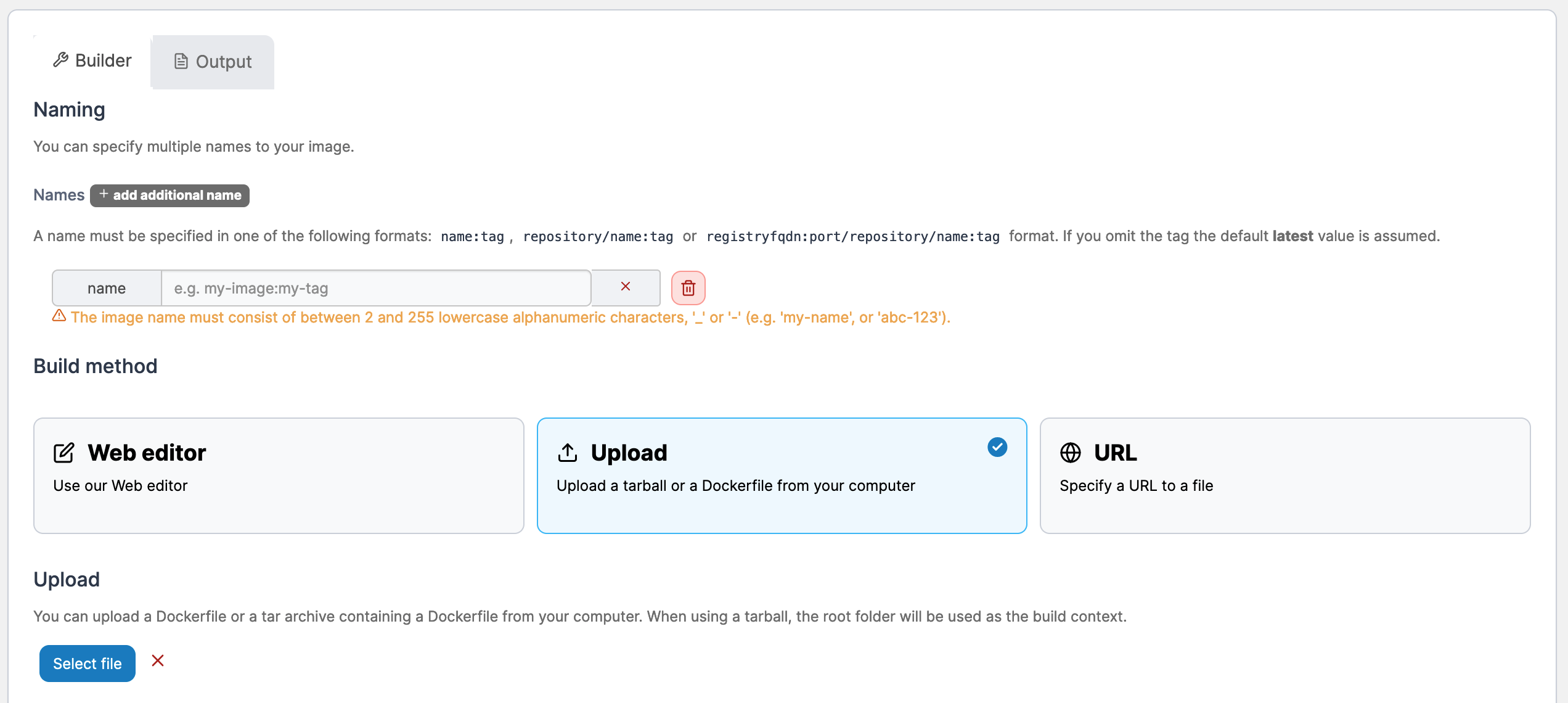
If you have an existing Dockerfile, you can upload it to Portainer and use it to build the image.

From the menu select **Images** then click **Build a new image**.

<figure><img src="https://3850702872-files.gitbook.io/~/files/v0/b/gitbook-x-prod.appspot.com/o/spaces%2FXI7douejaBgpZ6CP2zJf%2Fuploads%2Fgit-blob-1839d0cbe5dd4fe92b35f47bc27ca2e55779c965%2F2.15-docker_images_build_image_upload.gif?alt=media" alt=""><figcaption></figcaption></figure>

Next, give the image a descriptive name (you can enter multiple names), select the **Upload** option under **Build method**, then browse to and upload the Dockerfile.

<figure><img src="https://3850702872-files.gitbook.io/~/files/v0/b/gitbook-x-prod.appspot.com/o/spaces%2FXI7douejaBgpZ6CP2zJf%2Fuploads%2Fgit-blob-33b81b219616b1c22b8627af7a1339c2b054eb46%2F2.15-docker_images_build_upload.png?alt=media" alt=""><figcaption></figcaption></figure>

Scroll down and select the node you want to save the image on (if on a multi-node environment) then click **Build the image**.

<figure><img src="https://3850702872-files.gitbook.io/~/files/v0/b/gitbook-x-prod.appspot.com/o/spaces%2FXI7douejaBgpZ6CP2zJf%2Fuploads%2Fgit-blob-9c88c31f1683ba63a599a5eac2dd2c513fb89361%2F2.15-docker_images_build_deployment.png?alt=media" alt=""><figcaption></figcaption></figure>

When the build is finished, select the **Output** tab to view the build history and the result.
## Method 3: Providing a Dockerfile from a URL

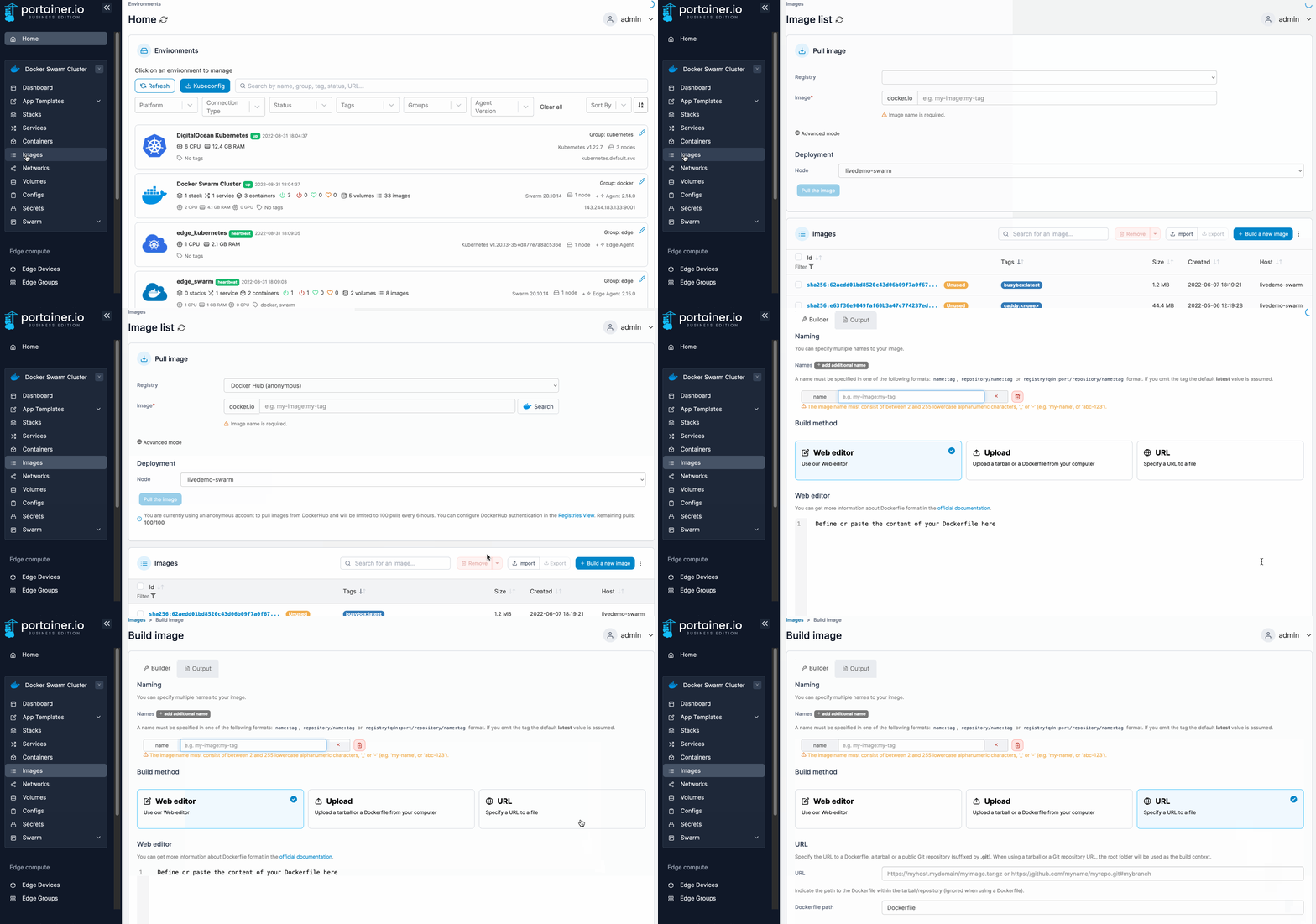
If the Dockerfile is hosted on the Internet (either in a tarball or a public GitHub repository), you can download it directly to Portainer via its URL.

From the menu select **Images** then click **Build a new image**.

<figure><img src="https://3850702872-files.gitbook.io/~/files/v0/b/gitbook-x-prod.appspot.com/o/spaces%2FXI7douejaBgpZ6CP2zJf%2Fuploads%2Fgit-blob-2b1c1309db05641c9fb3b8eb755f26d575c4c49f%2F2.15-docker_images_build_image_URL.gif?alt=media" alt=""><figcaption></figcaption></figure>

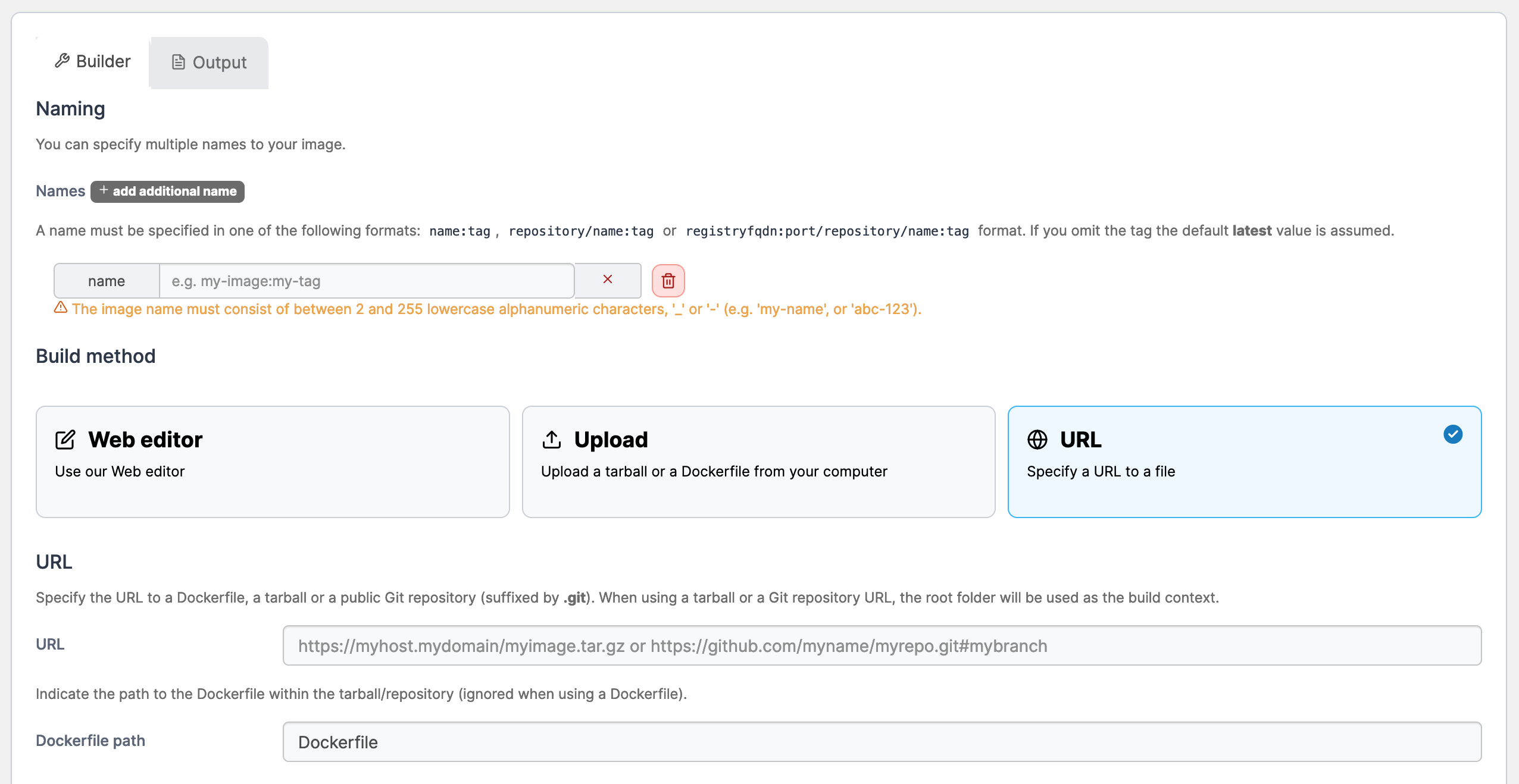
Next, give the image a descriptive name (you can enter multiple names), select the **Upload** option under **Build method**, then enter the **URL** of the file and the **Dockerfile path** within the tarball or repository.

<figure><img src="https://3850702872-files.gitbook.io/~/files/v0/b/gitbook-x-prod.appspot.com/o/spaces%2FXI7douejaBgpZ6CP2zJf%2Fuploads%2Fgit-blob-69445d73175216658f625164bfa9ba853400b2e3%2F2.15-docker_images_build_URL.png?alt=media" alt=""><figcaption></figcaption></figure>

Scroll down and select the node you want to save the image on (if on a multi-node environment) click **Build the image**.

<figure><img src="https://3850702872-files.gitbook.io/~/files/v0/b/gitbook-x-prod.appspot.com/o/spaces%2FXI7douejaBgpZ6CP2zJf%2Fuploads%2Fgit-blob-9c88c31f1683ba63a599a5eac2dd2c513fb89361%2F2.15-docker_images_build_deployment.png?alt=media" alt=""><figcaption></figcaption></figure>

When the build is finished, select the **Output** tab to view the build history and the result.