# Add a Quay.io registry
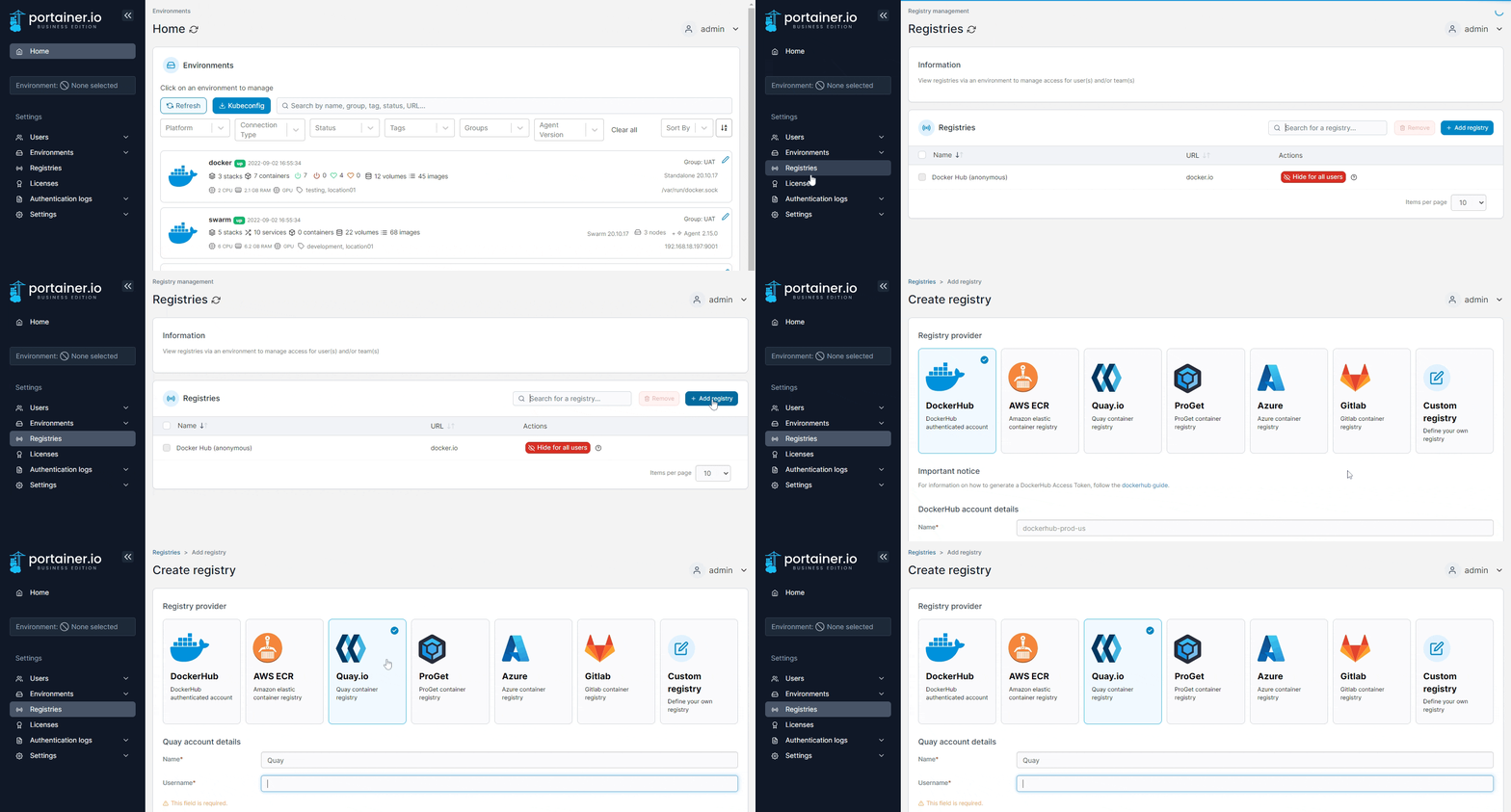
From the menu select **Registries** then click **Add registry** and select **Quay.io** as the registry provider.
{% hint style="warning" %}
At present we do not support Quay.io as a source for OCI-format Helm charts. We hope to address this in a future release.
{% endhint %}
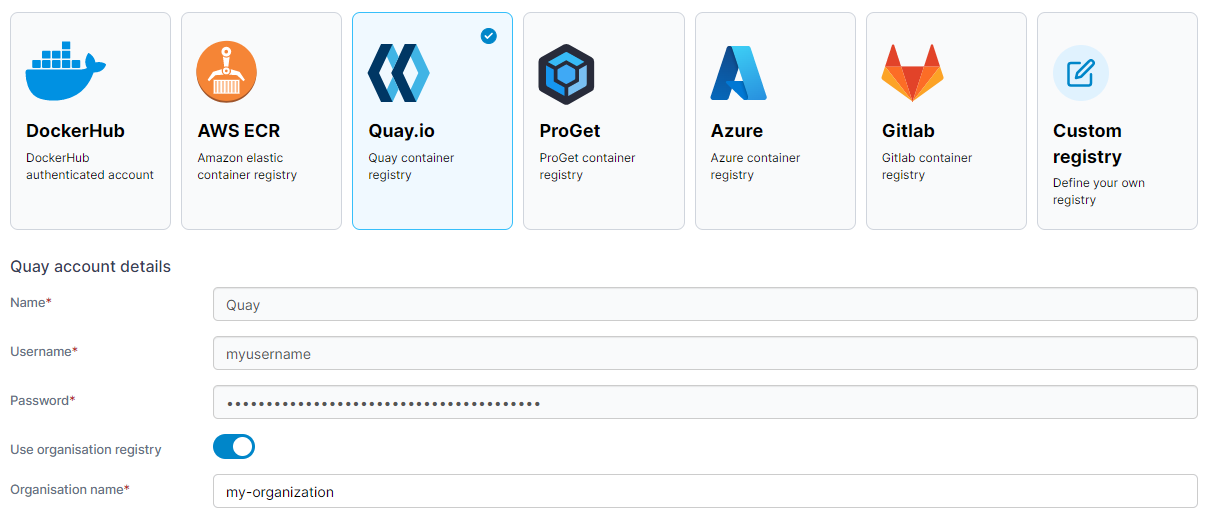
Complete the form, using the table below as a guide.
| Field/Option | Overview |
| ------------------------- | -------------------------------------------------------------------------------------------------- |
| Username | Enter the username you use to connect to your Quay.io registry. |
| Password | Enter the password that corresponds to the username above. |
| Use organisation registry | Toggle on if you need to specify the organization to use when connecting to your Quay.io registry. |
When the form is complete, click **Add registry**.